

Share info in the Wiki
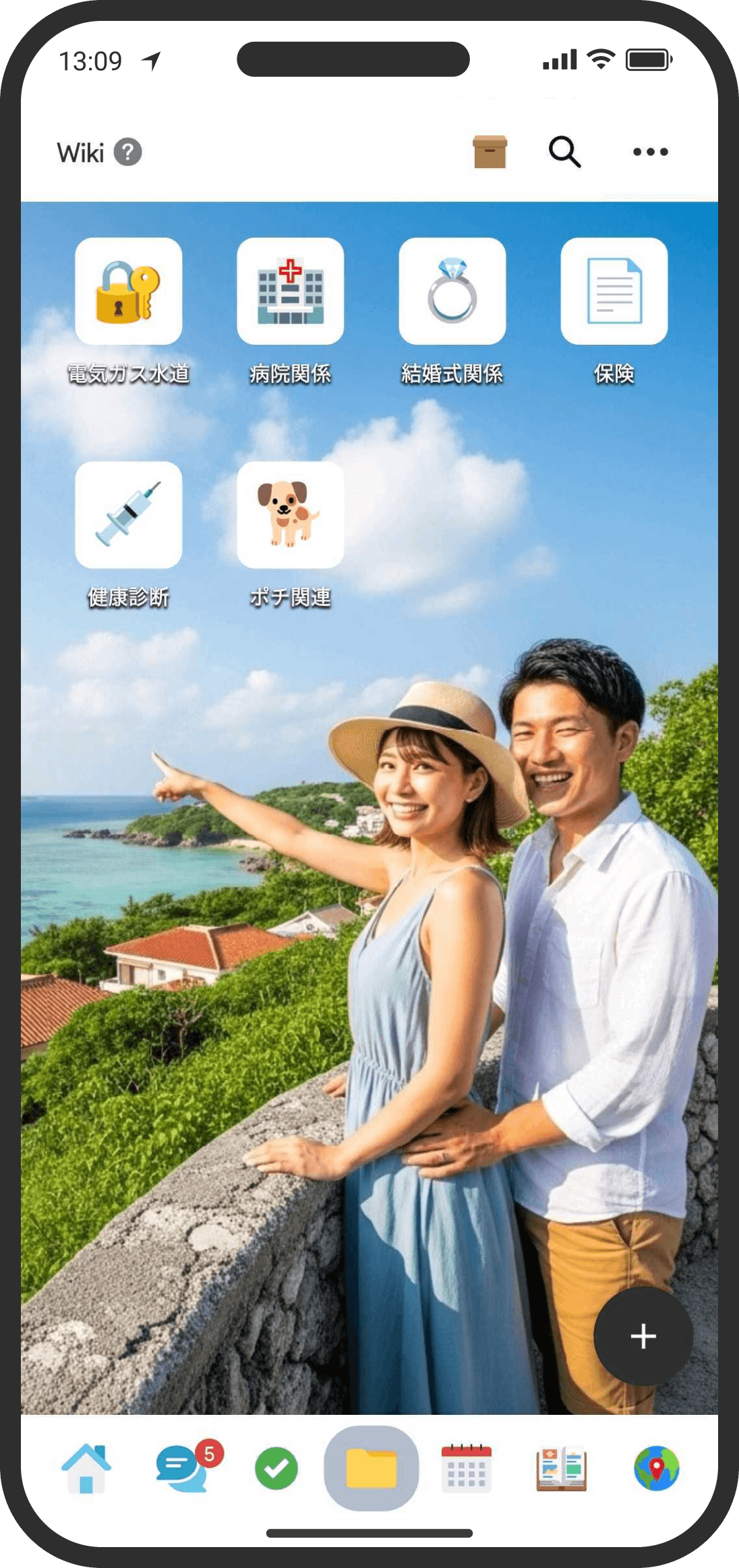
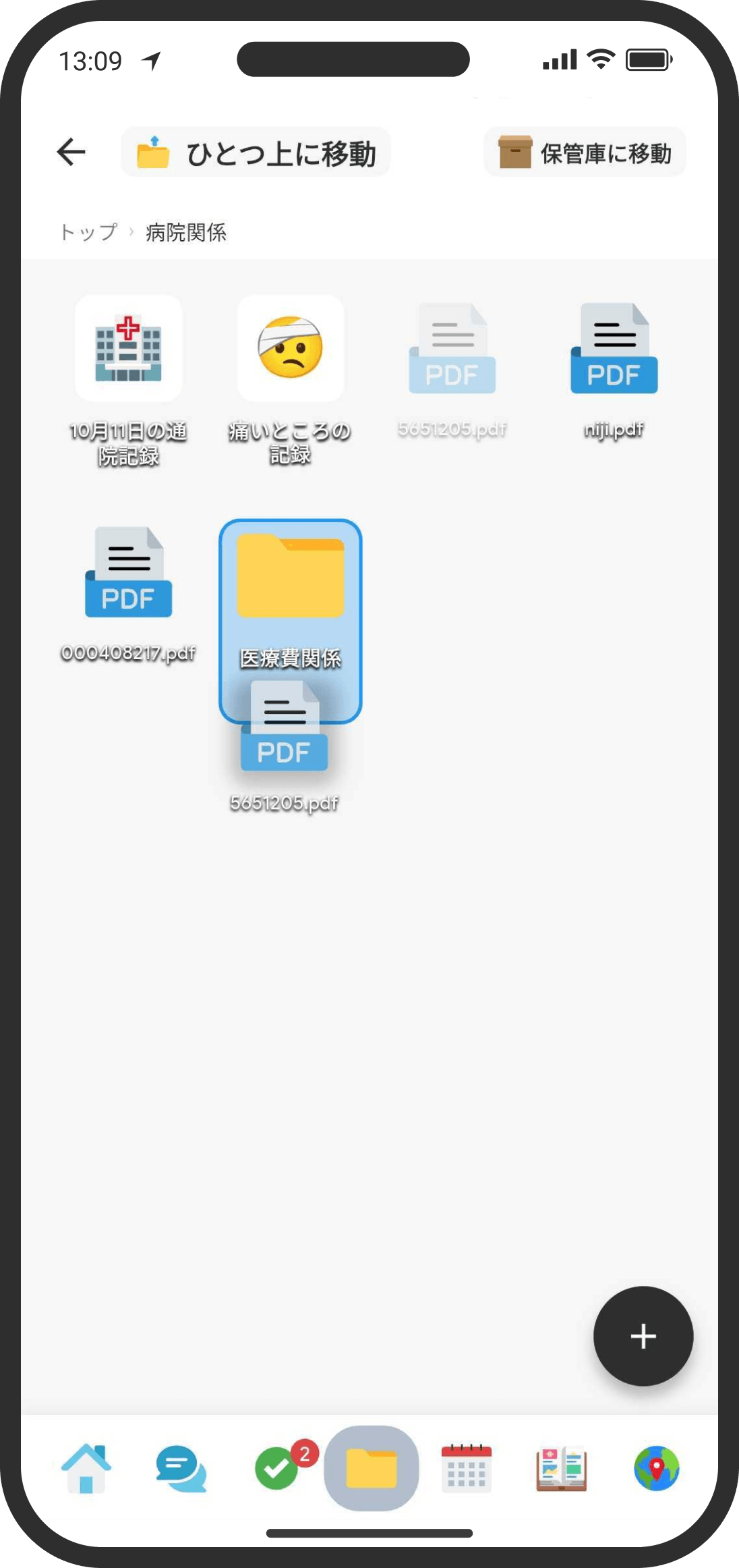
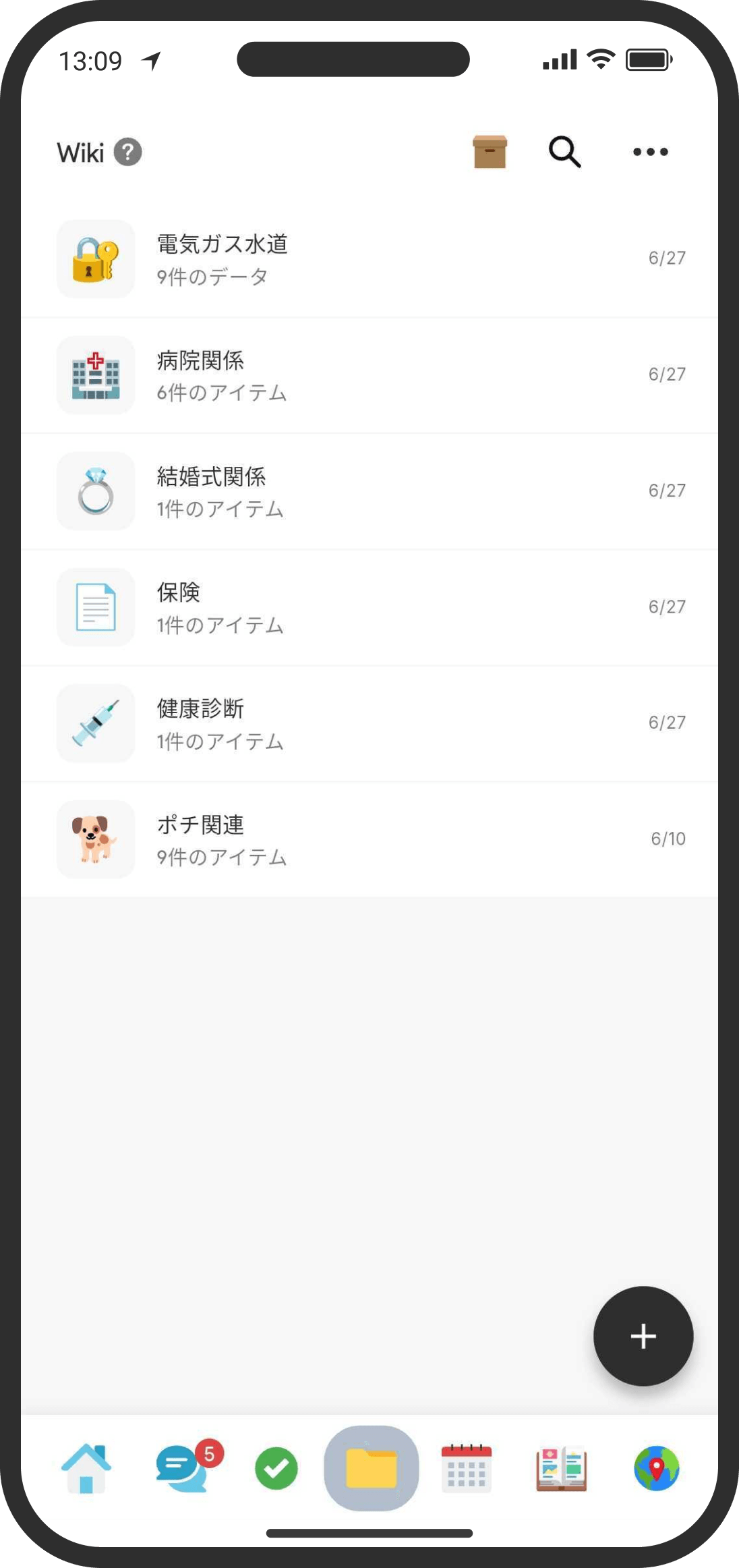
The new Wiki is a shared "folder/drive" for information you both use. Organize memos, data, and files into folders. You can put folders you use often in the "Shortcuts" widget on the Home screen (in Custom mode).
What is it?
A place to organize info, files, memos, and data that only the two of you share. Everything in it is encrypted and visible only to your partner. Other couples and the COUPPLY team can't see it.
Open it and switch views
- Default mode: What's in the Wiki (memos, data, files, trip plans, and folders) is listed on "Top" on the Home screen, together with chats and lists.
- Custom mode: Open it from "Wiki" in the bottom menu.
- From the menu at the top right, choose "Switch to list view" or "Switch to grid view" (this is on the Wiki tab in Custom mode). Your choice is saved on each device, so it doesn't affect your partner's screen.
- In Default mode, tap the tree icon to the right of the "Top" heading to switch to "tree view." Every level, including what's inside folders, appears in one list. Tap a folder to expand or collapse it; all folders start expanded. The icon changes to a list icon, and tapping it again takes you back to the regular list view. Which view you use and which folders you've collapsed are saved on each device, so they don't affect your partner's screen.
- Tree view shows only a small icon and the page name (no update time or latest message). Pages your partner has written in that you haven't seen yet appear in bold with a count. A collapsed folder shows the total count for the pages inside it.
- In grid view, you can set a "background image for the whole Wiki," shared by the two of you, from "Change background" in the menu at the top right (choose from backgrounds, or upload your own).
Add things
- Default mode: Add from "+" at the top right of "Top" on the Home screen (folder, file, thread, checklist, memo, data, or trip plan).
- Custom mode: From "+" at the bottom right of the Wiki tab, add a "Folder," "File," "Memo," "Data," or "Trip plan."
- Folder: A container for grouping other items.
- File: Upload and share photos, videos, PDFs, and more.
- Memo: Write formatted text.
- Data: Organize info field by field in key-value format.
- New pages, threads, and lists appear at the top of the list. To put them at the bottom instead, tap "Add to top" on the create screen to switch it to "Add to bottom." You'll find this button below "Add To" (below "Category" for threads and lists in Custom mode). Tap it again to switch back to the top.
- The position you chose last is used the next time you create something. This choice is saved only on your device and doesn't affect your partner's create screen. The order of the items, however, is shared, so the new page appears in the same position on your partner's list too.
Reorder, move into folders, and archive
- In both list view and grid view, you can drag and drop to reorder items or move them into folders. The same works on "Top" in Default mode (long-press and drag to reorder, drop onto the middle of a folder row to move it there, or drop onto the box icon to the right of the heading to send it to the archive).
- In tree view, you can also long-press and drag to reorder, move items out of a folder, or put them anywhere in another folder. Drop onto the middle of a folder row to add the item to the bottom of that folder, or onto the bottom edge of an expanded folder row to add it to the top. The order and folders are shared with your partner.
- Drop an item onto the archive icon at the top right of the screen to move it to the archive. Use the archive to tidy up data you don't use but don't want to delete.
- Inside a folder, drag and drop an item onto the folder name at the top left (the back area at the top of the screen) to move it up one level.
Search the Wiki
- In Default mode, tap the magnifying glass to the right of the heading on "Top" on the Home screen to search everything at once, including chats and lists, not just the Wiki (there's no type filter).
- In Custom mode, tap the magnifying glass at the top right of the Wiki tab's top page to start searching.
- Use the filter chips at the top to choose a type (All, Folders, Files, Memos, Data, or Trip plans). You can also switch between "Include archive" and "Exclude archive."
- Search covers titles, descriptions, memo text, data field labels and values, file names, and everything in trip plans.
- You can't reorder or archive items from search results (they're only for tapping to open).
FAQ
Q. Can my partner see what I add? Will they be notified?
Yes. It's shared, and your partner can see it. Your partner gets a notification when you add a folder; add, update, or hide a memo; add or update data; or add a file, as long as the matching category is turned on in their notification settings. Reordering, moving between folders, and deleting folders don't send notifications.
Q. Can I tell whether my partner has read something?
No. Memos, data, and files don't show whether your partner has read them (read receipts are only in threads).
Q. What can go in the Wiki?
Memos, data, files, and folders (plus trip plans). Chats (threads) and checklists aren't listed on the Wiki's top page.
- Default mode: Chats, lists, and the Wiki are all listed together on "Top" on the Home screen, and you can put chats and lists into folders too. Once added, they show up inside the folder when you open it.
- Custom mode: Use chats and lists from the "Chat" and "Lists" tabs. Chats and lists you put in folders in Default mode don't appear on the Wiki's top page either (open the folder to see them inside).
Q. How many files can I attach to a memo?
Up to 3 per memo on the free plan and up to 50 on the COUPPLY PRO plan. Either way, they count toward your plan's storage limit.
Q. Will my partner see the same list/grid view as me?
No. The view is saved on each device. The background image is shared by the two of you.
Q. When I open the Wiki, gray boxes are lined up and the list doesn't appear, or I see "Failed to load"
When your connection is unstable, loading the page list can take a while. Gray boxes (a loading placeholder) show until loading finishes, and then the list appears on its own. If loading fails, you'll see "Failed to load." Check your connection and tap "Reload." "No pages" only appears when loading has finished and there really are no pages. Your saved pages haven't disappeared.