

Talk in threads
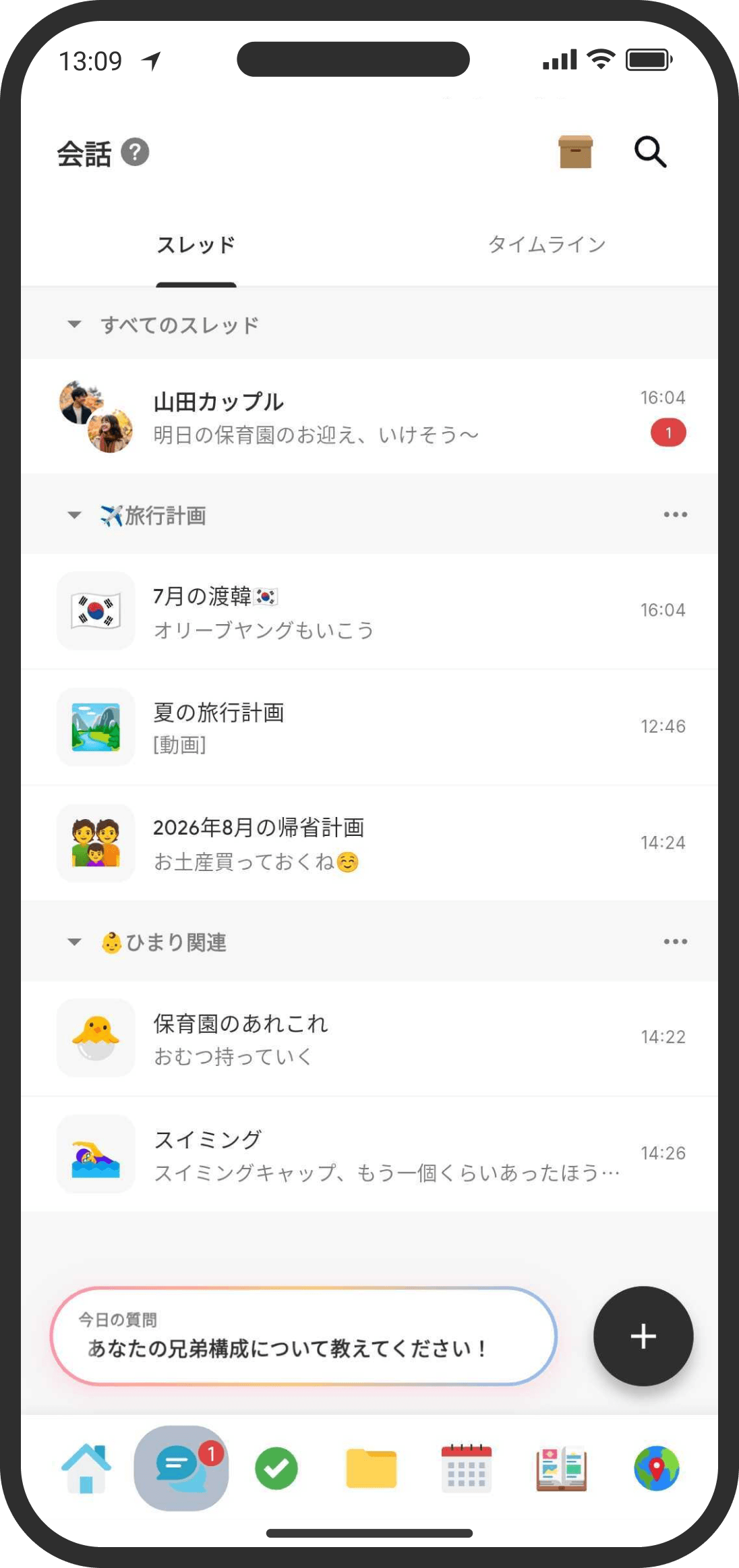
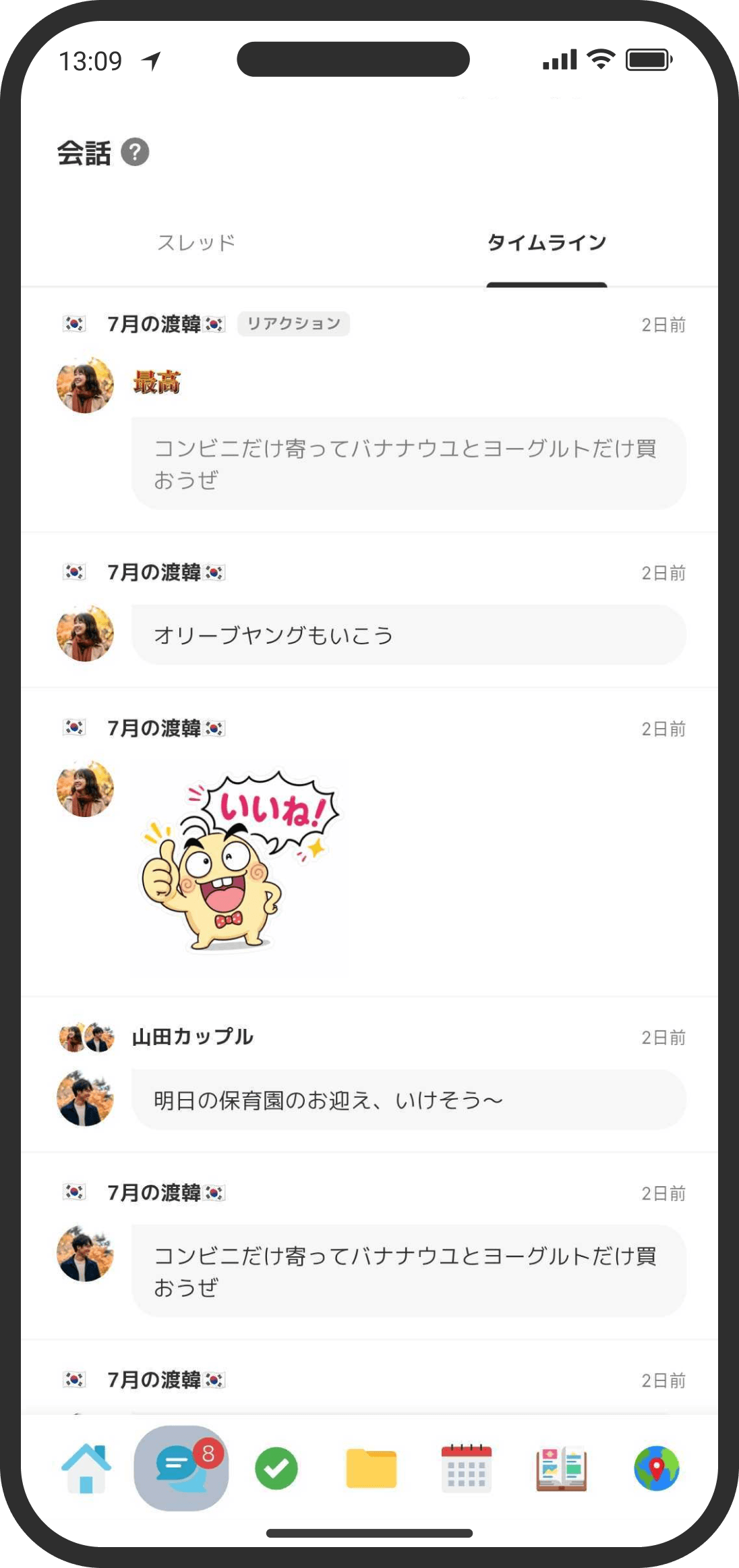
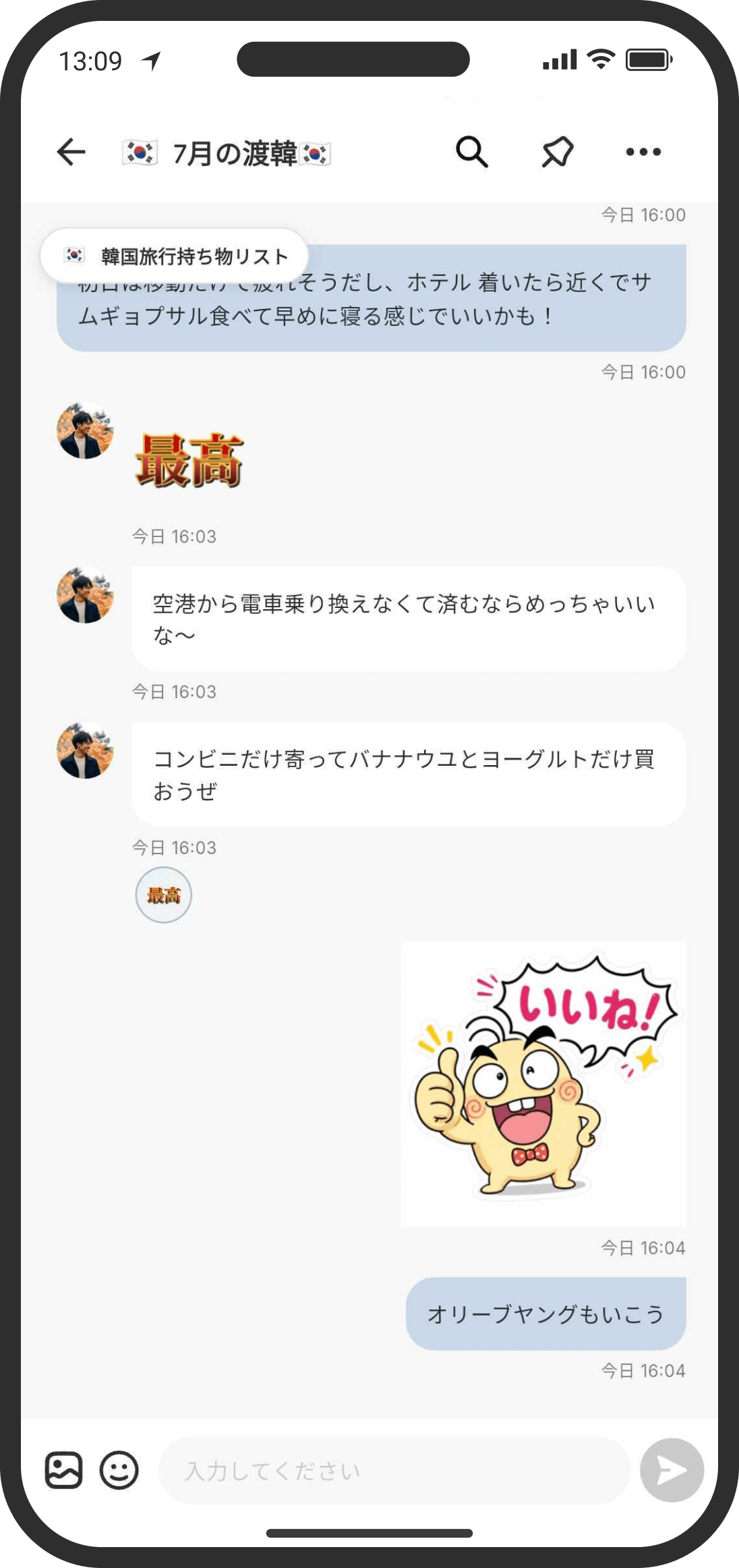
Make your chats more fun with reactions and stickers! You can also put threads you use often on the Home screen with the Shortcuts widget or the Thread widget (in Custom mode).
What is it?
A chat where the two of you can talk things over, organized by topic. You can also send photos, files, and stickers. Only the two of you can see what's in it; no one else can.
Creating a thread
- Default mode: Tap the "+" at the top right of "Top" on the Home screen and choose "Thread."
- Custom mode: Open the "Chat" tab from the bottom menu and tap the "+" at the bottom right to create a new thread.
- When you create a thread, there are a few settings:
- Icon: Choose an emoji for the thread's icon. You can also upload an image.
- Title: Set the thread's title.
- Description: Set a description for the thread. It's shown under the title on the thread's page. It's handy for explaining what the thread is about or for info you want to keep pinned.
- Category: Set a category for the thread. Thread categories let you organize your threads once you have a lot of them. The default is "All Threads" (no category). Note: Thread categories are only available in Custom mode. They don't appear in Default mode, where you organize with folders instead.
- Show Read Receipts: When on, a read icon appears next to the time of each message. This setting is shared with your partner.
- Update Notifications: By default, you only get a push notification for replies to you. Turn this on to get a push notification whenever your partner posts, not just for replies.
Changing a thread's settings or deleting it
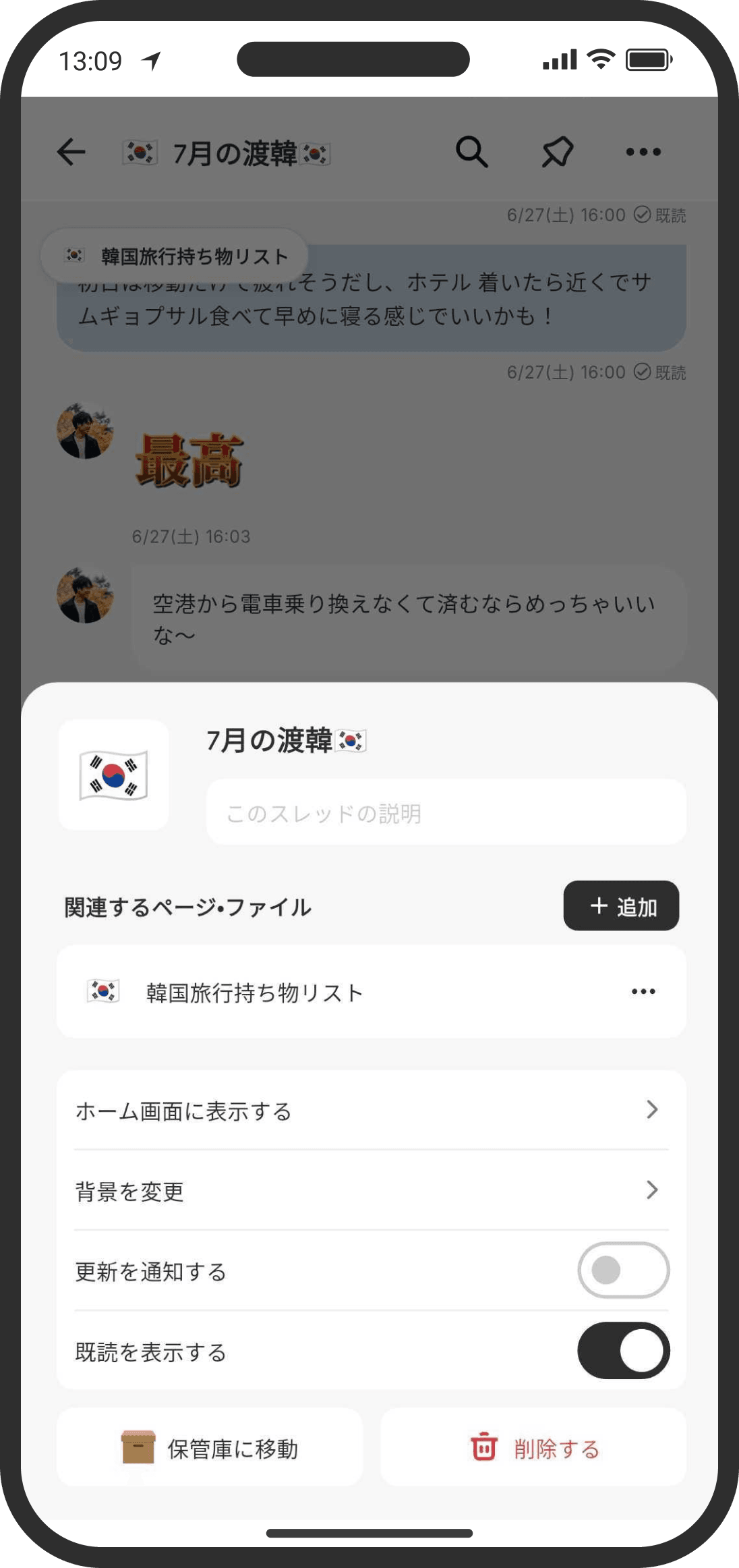
- Open a thread and tap the "..." at the top right to change its settings. Besides the settings you chose when creating it, you can set the following:
- Related Pages & Files: Link the thread to other threads, lists, or Wiki items (folders, pages, and files). Links you add appear as shortcuts at the top of the thread. In Default mode, there's no screen for choosing a type first; you can pick from all pages directly (in Custom mode, you choose the type first).
Show on Home Screen (Custom mode only): Adds a Thread widget to the bottom of the Home screen. It's a good idea for threads you use often. - Change Background: Set the thread's background from the available backgrounds or by uploading an image.
- Move to Archive: Moves the thread to the "Archive" while keeping its data. Move threads here that you don't use but want to keep. In Default mode, open the archive from the box icon to the right of the "Top" heading on Home (you can also drag an item in "Top" onto it to move it).
- Delete: Deletes everything, including all messages in the thread. This can't be undone.
Organizing with thread categories (Custom mode only)
- Thread categories aren't available in Default mode. Organize with folders instead (see the "Organize with folders" help article).
- Once you have a lot of threads, you can organize them with "thread categories." Just like creating a thread, tap the "+" at the bottom right to create a thread category. To move a thread into a category, drag and drop it onto the category name. You can also drag and drop threads and thread categories to reorder them.
- Tap a category to collapse the threads in it. Tap the "..." to the right of the category name to rename or delete the category. When you delete a category, its threads move to "All Threads" (no category).
Messages
- Send messages from the box at the bottom. Use the image icon on the left to attach files or images.
- With "Choose a File," you can pick several files at once. They're sent one file per message, in the order you picked them (your partner gets a notification for each message).
- Tap a message to go to its reply screen.
- Long-press a message to add a reaction (emoji) or, if it's your own message, delete it. If you delete a message that has replies, the replies under it are deleted too.
- Messages support Markdown formatting. However, a single `*` isn't turned into italics and is shown as is (so emoticons like `(*^_^*)` don't get garbled). Bold with `text` works. The same goes for LOVE, thanks, and sorry messages, and for messages you sent in the counseling room.
Message history and search
- On the free plan, you can scroll back through the last 100 messages. With COUPPLY PRO, you can scroll back through all past messages.
- Tap the magnifying glass at the top right of a thread to search the text of its messages. On the free plan, each thread is limited to 100 messages. In Custom mode, the magnifying glass at the top right of the Chat tab searches message text across all threads. In Default mode, the magnifying glass to the right of the "Top" heading on Home finds pages by their name and description (it doesn't search message text, so use the magnifying glass in each thread for that).
- If you cancel COUPPLY PRO and go back to the free plan, you can only see the last 100 messages again, but your past messages are never deleted. If you subscribe to COUPPLY PRO again, you can see your full history again.
Reactions and stickers
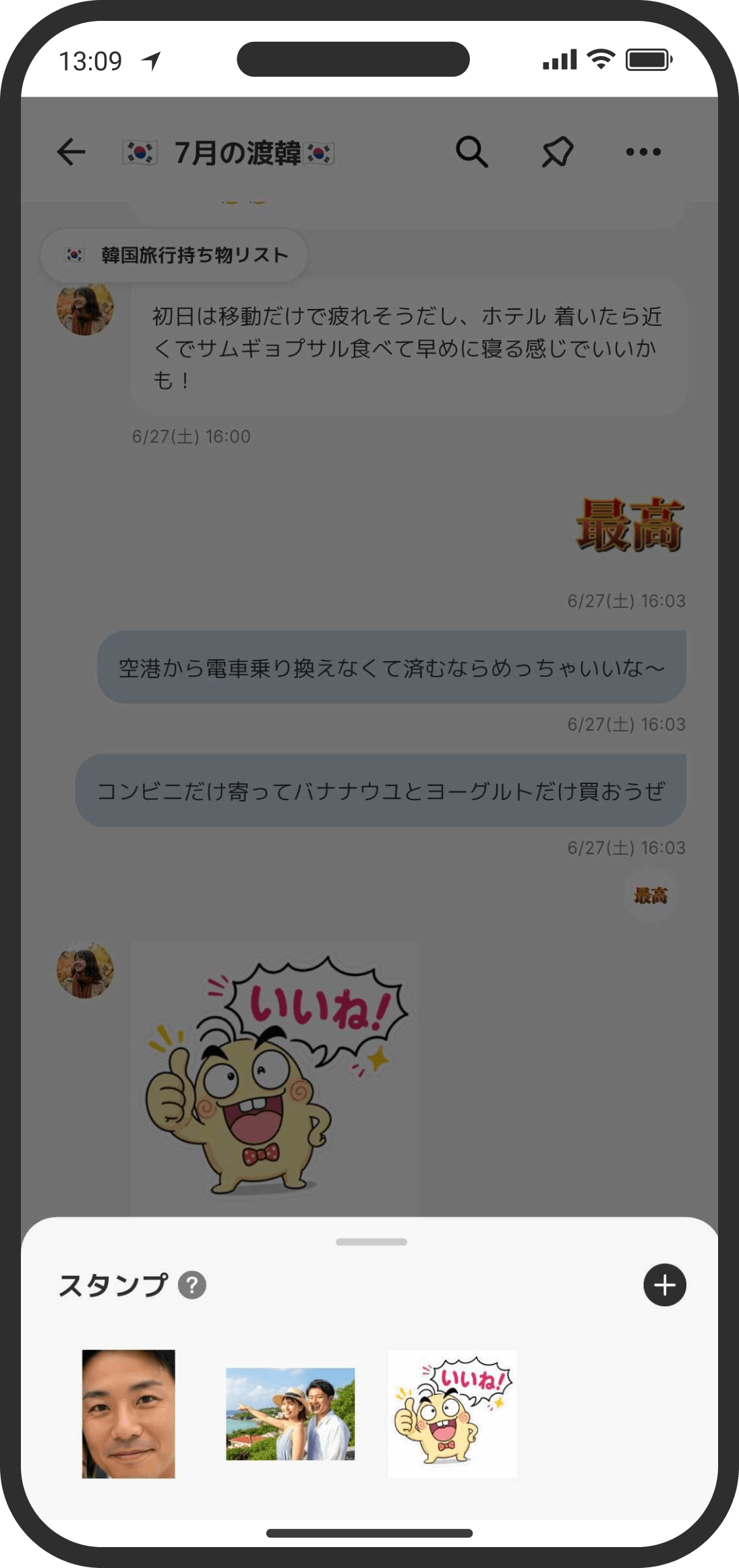
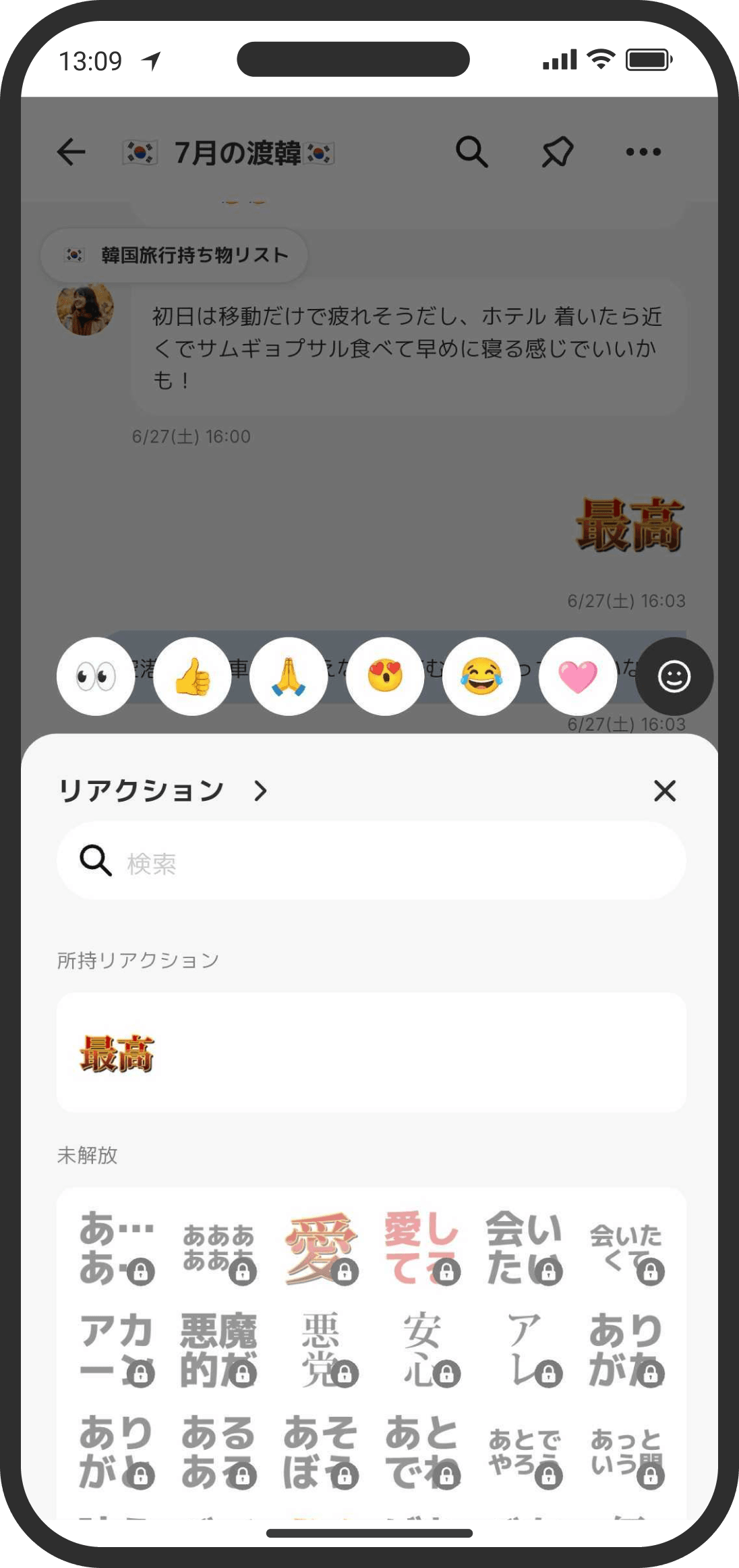
- Tap the face icon next to the box at the bottom of each thread to send a "reaction" or a "sticker."
- You can also choose an emoji from the black emoji icon at the top right of the reaction picker.
- Custom reactions (COUPPLY PRO only): Turn any image you like into a custom reaction just for the two of you. Register one from the "Add reaction" button at the top of the reaction picker. Just like stickers, there are two ways: "Create from copied image" and "Upload image," and images with transparent backgrounds work too. There's no limit on how many you can register.
- Custom reactions you register are shared with your partner, and both of you can send them. When you send one, your partner gets a notification, just like with regular reactions.
- To delete one, long-press it in the "All" section of the reaction picker, or on the management screen you open from the "Add reaction" button. Even if you delete it, reactions you've already added to messages stay.
- When your COUPPLY PRO ends, you can no longer send your registered custom reactions (they're shown with a lock). Your data isn't deleted, and ones you've already added to messages are still shown. If you subscribe to COUPPLY PRO again, you can use them again just as before.
- When the app's display language isn't Japanese, reactions unlocked with coins aren't available (because their designs and names are almost all in Japanese). The reaction picker only shows animated emoji, emoji, and custom reactions, with an "Add reaction" button at the very top. The reactions item also disappears from the "Store." If you want to use reactions unlocked with coins, choose Japanese in "Settings" → "Language."
- On the free plan, you can create up to 8 stickers. Tap the "+" icon at the top right of the sticker picker and choose either "Create from copied image" or "Upload image."
- Create from copied image: Create a sticker from an image on your clipboard. For example, on iOS you can long-press a photo in your photo library to cut out and copy the subject, and register it as a sticker just like that.
- Upload image: Create a sticker by uploading an image from your photo library. Images with transparent backgrounds work too.
- To delete a sticker, long-press it in the sticker picker. Even if you delete a sticker, ones you've already sent stay.
Showing threads you use often on the Home screen (Custom mode only)
- In Default mode, conversations are always listed in "Top" on Home, so you don't need a widget.
- To show a thread on the Home screen, use the "Shortcuts" or "Thread" widget. Add it with "Show on Home Screen" in the "..." menu at the top right of a thread, or with "Add Widget" at the top of "Home Screen Settings" at the bottom of the Home screen.
FAQ
Q. Can I tell whether my partner has read a message?
Read receipts are off at first. Turn on "Show Read Receipts" on the thread's info (settings) screen, and you'll be able to tell whether your partner has read your messages. When your partner opens the thread, the messages they see are automatically marked as read.
Q. I'm not getting notifications
By default, you only get notifications for replies. To get notified of every update, you need to turn on "Update Notifications" for each thread. It's off at first for every thread except the default thread created when you sign up (shown as "Our Thread" or your couple name). Open the thread, tap the "..." at the top right to open the thread menu, and check that "Update Notifications" is on. Notification settings are separate for each thread and each person, so whether your partner gets notified depends on their own settings.
Q. Do messages stay forever?
On the free plan, you can see up to 100 messages. Past that, older messages are no longer shown. They aren't deleted, and with COUPPLY PRO you can see your history beyond 100 messages.
Q. What happens to my messages if I cancel COUPPLY PRO?
When you cancel, you can only see the "last 100 messages," just like on the free plan, but the messages themselves are never deleted. If you subscribe to COUPPLY PRO again, you can scroll back through your past messages again.
Q. My thread list doesn't appear, or it says "Failed to load"
When your connection is unstable, the list can take a while to load, and gray boxes (the loading display) appear in the meantime. If loading fails, you'll see "Failed to load." Check your connection and tap "Reload." Your threads haven't disappeared (also see the help topic When a list shows "Failed to load").