

Use the calendar
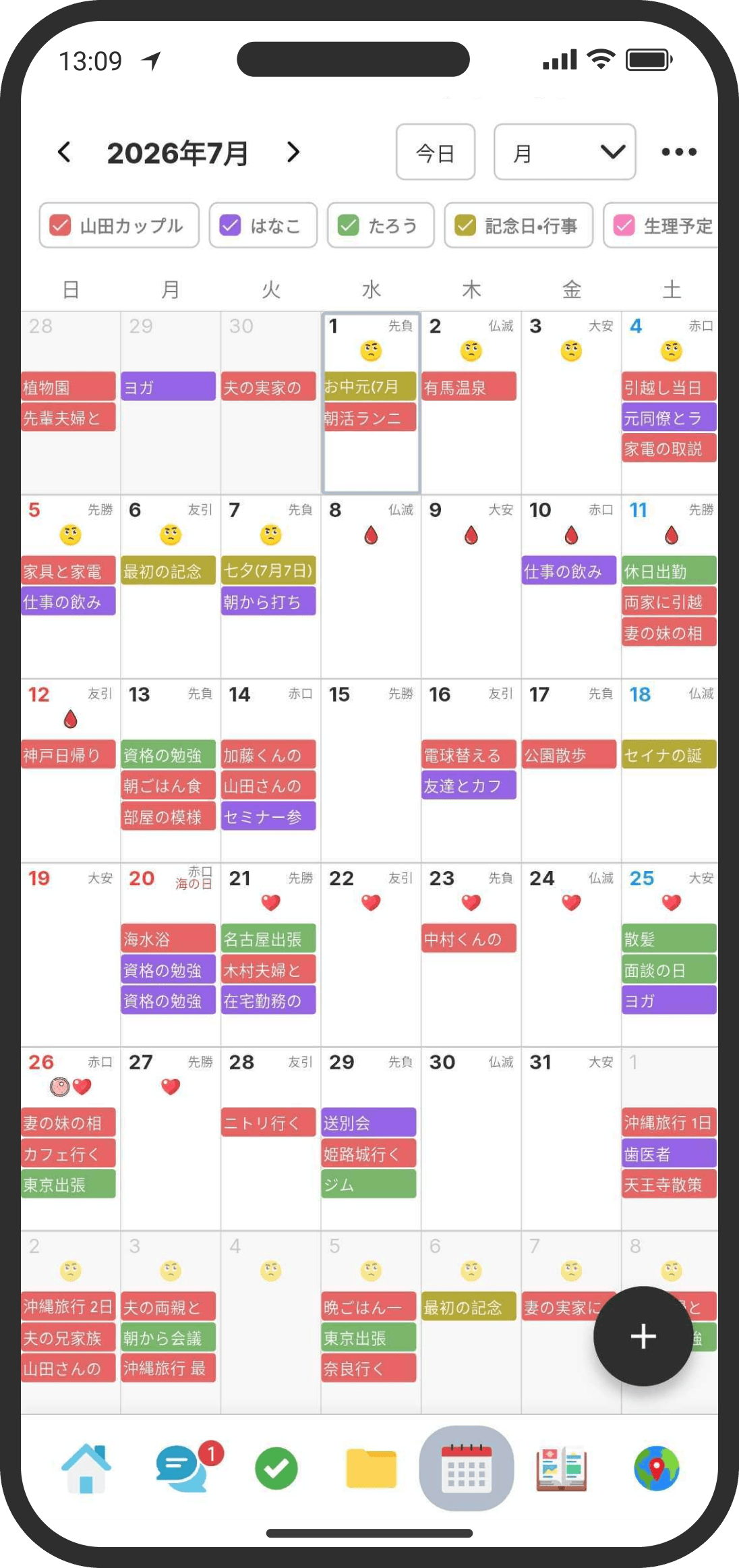
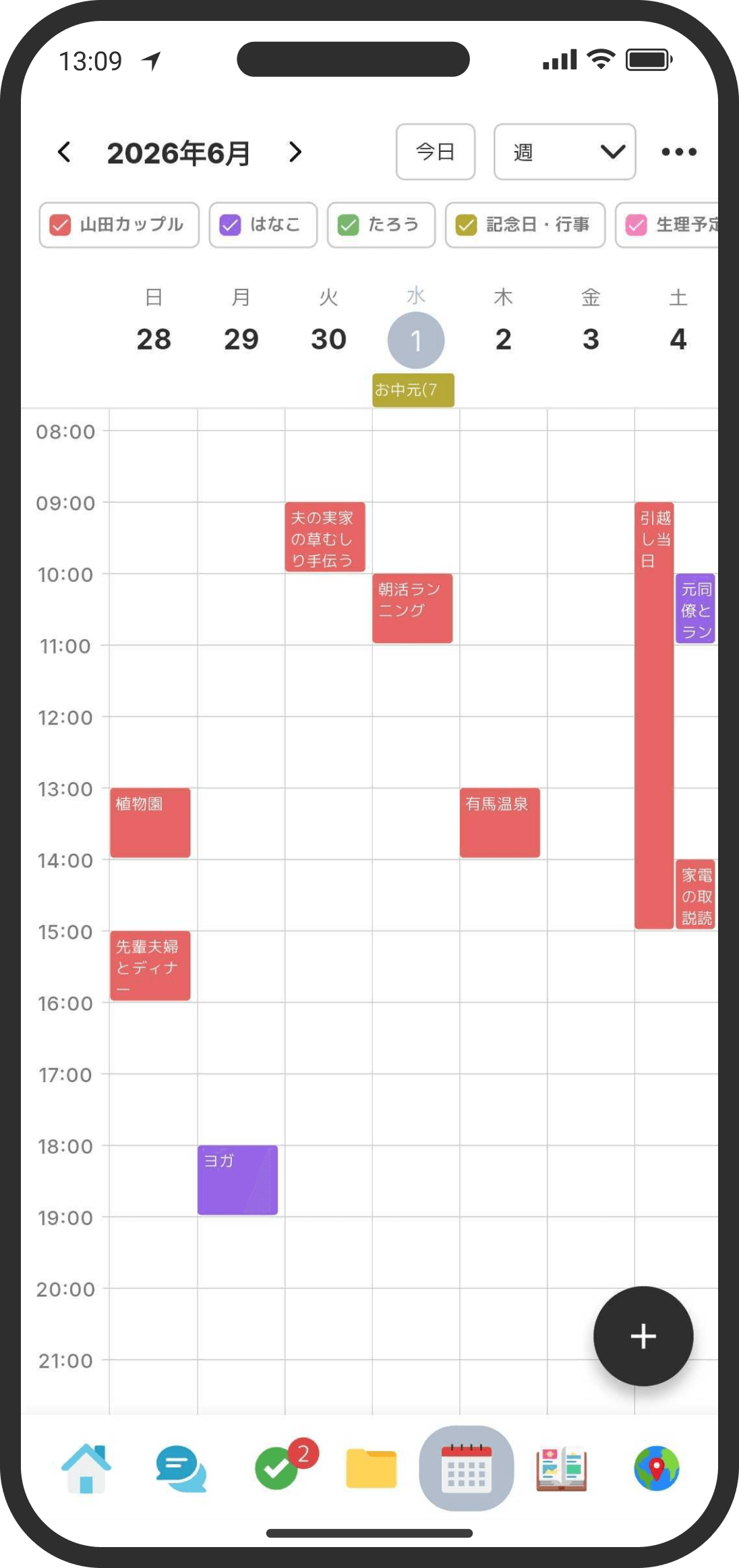
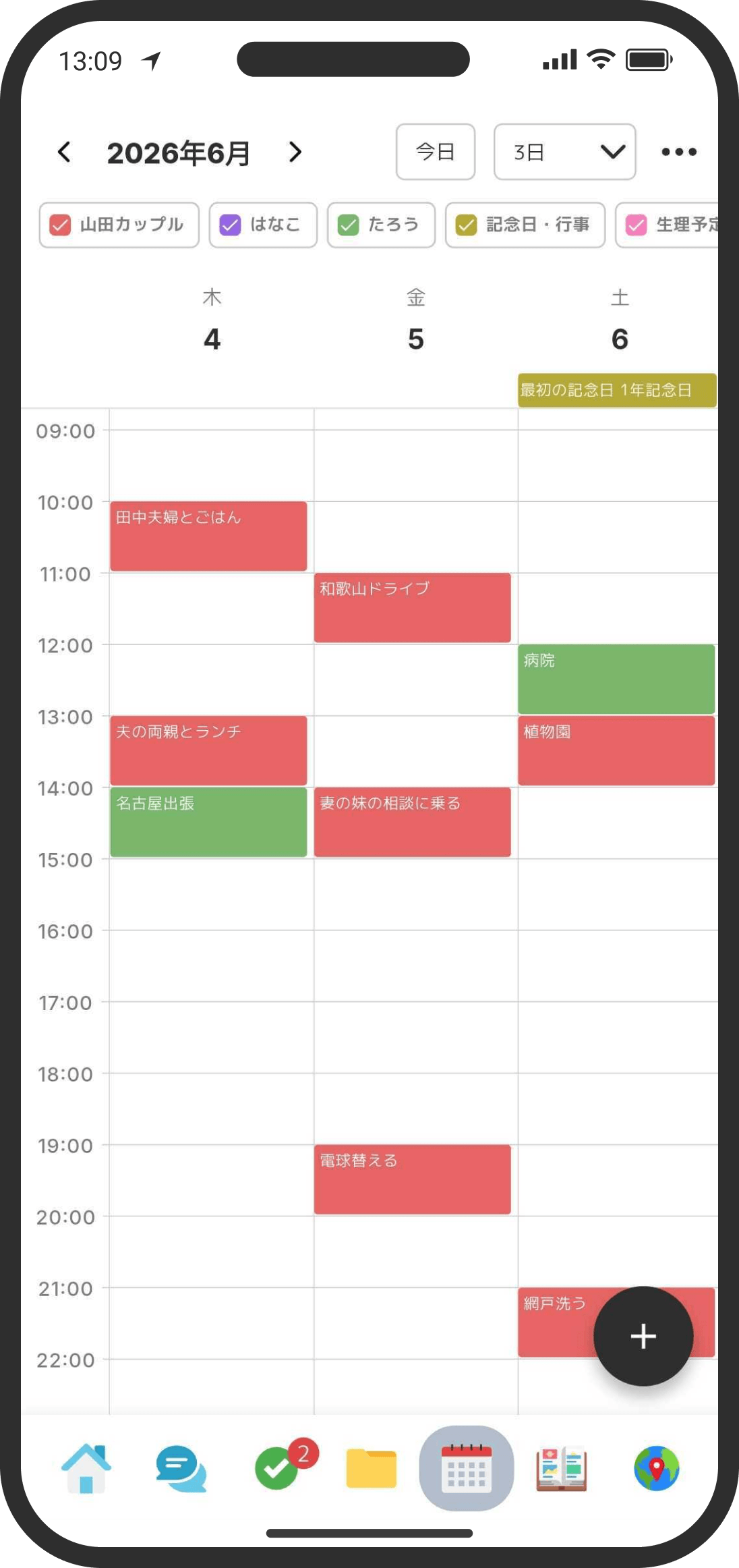
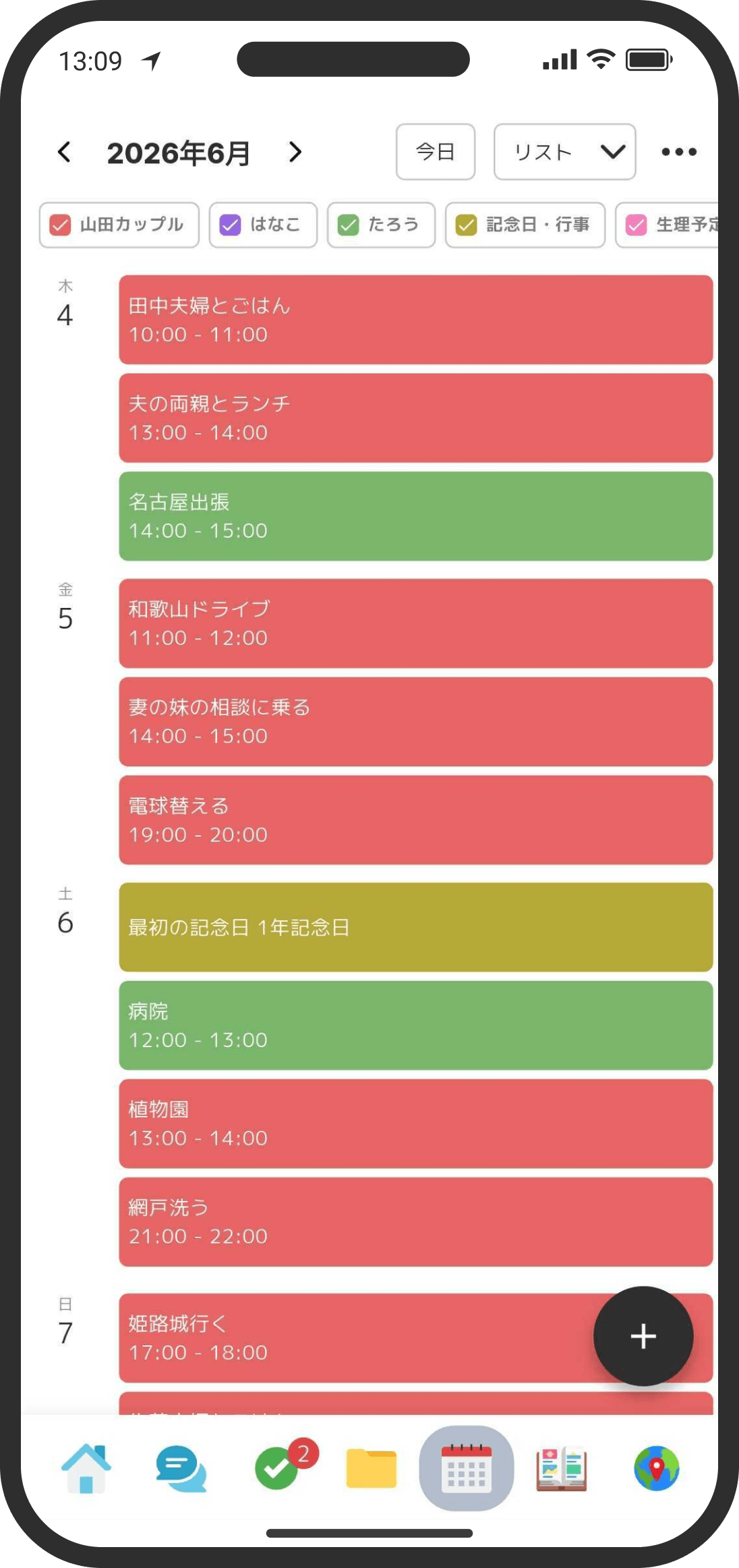
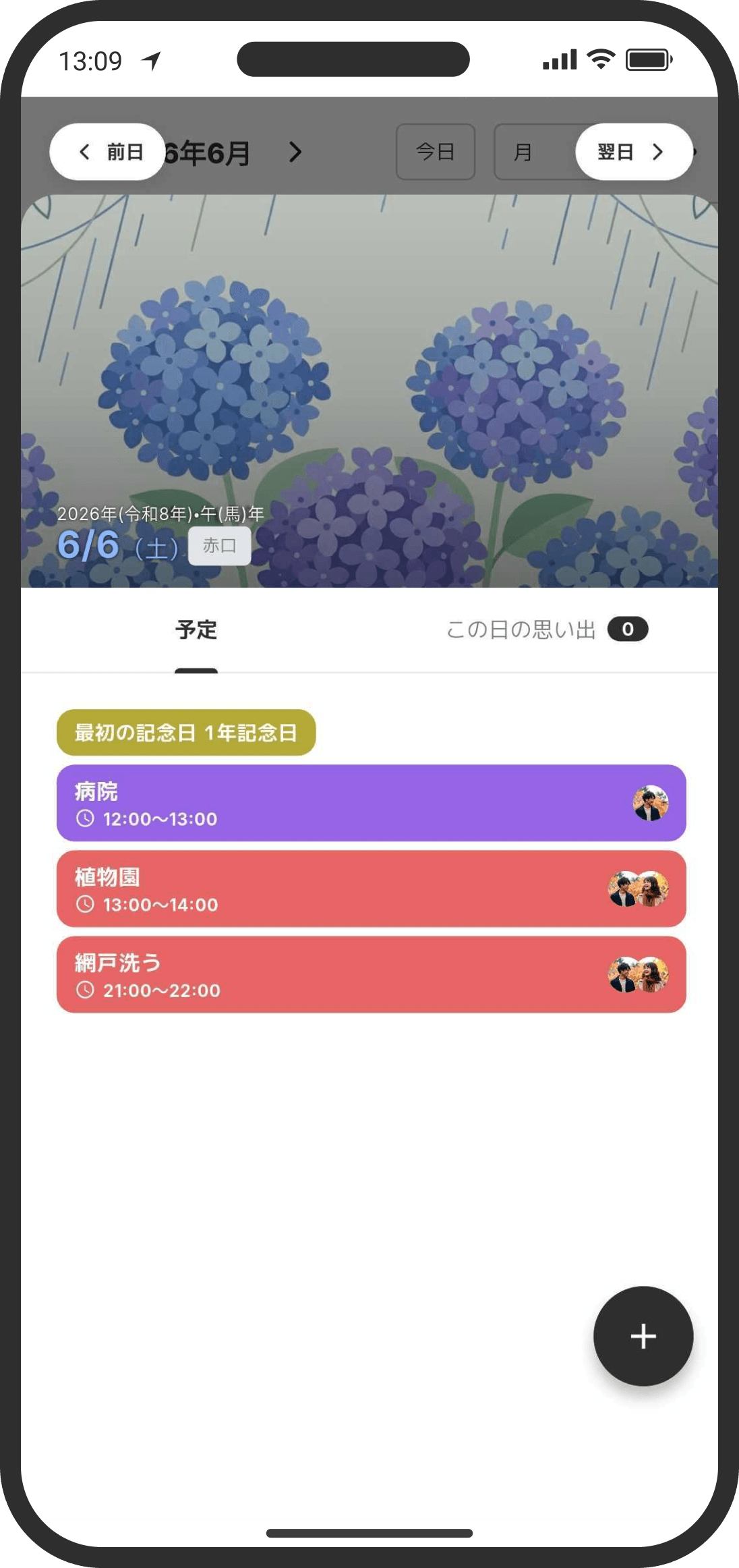
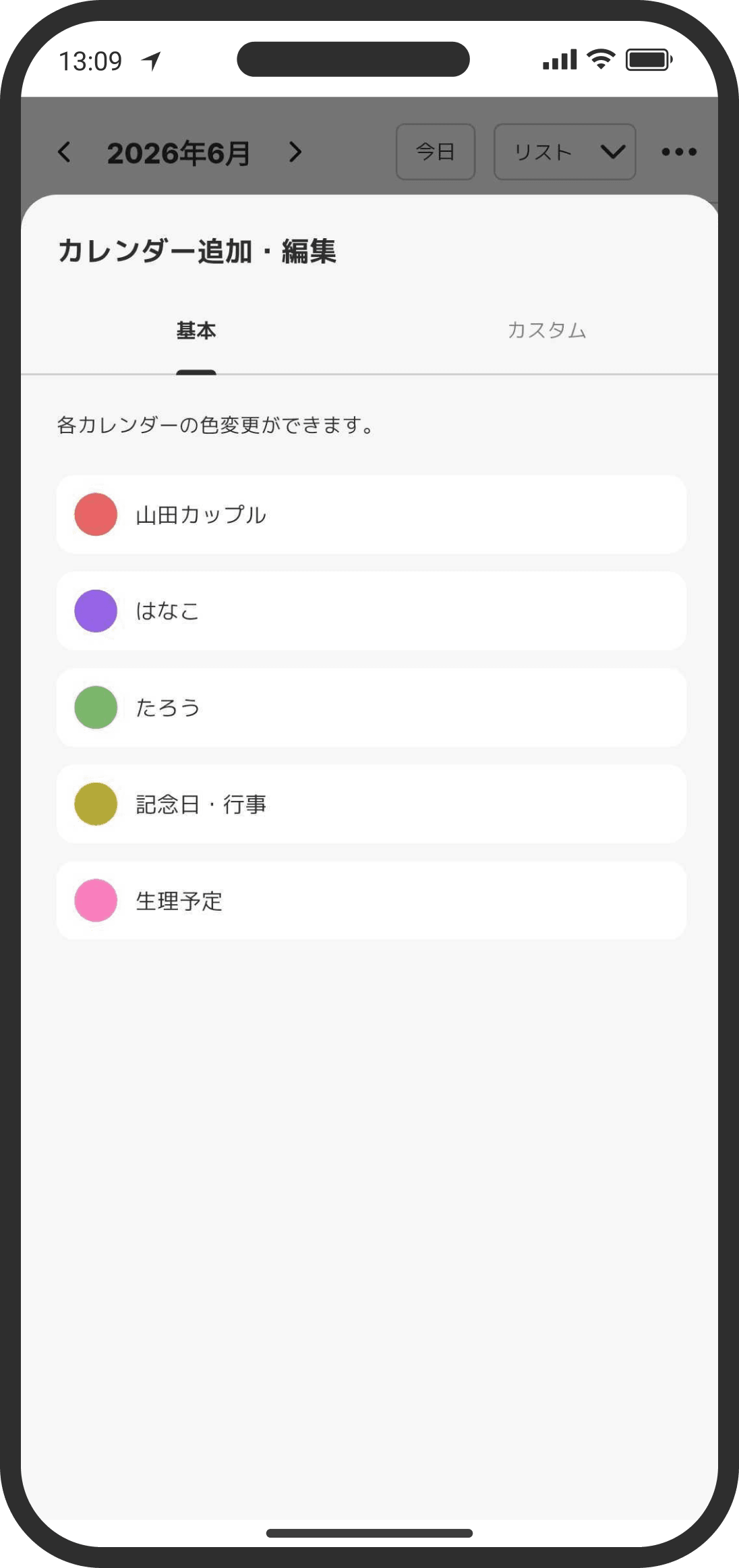
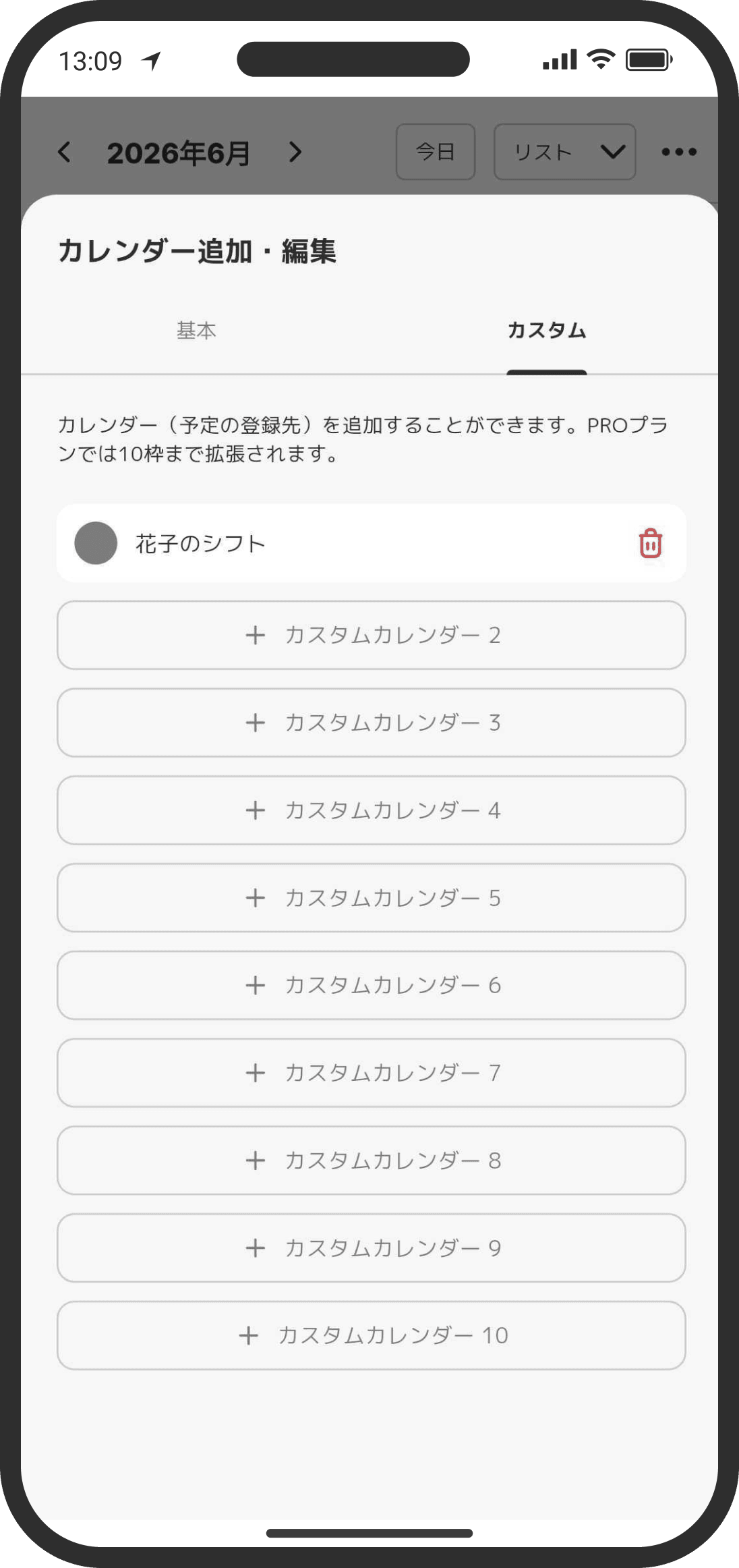
Set up your own events, events for the two of you, work events, and more, each in its own color.
What is it?
A calendar that brings your events, anniversaries, memories, and predicted periods together in one place. You can view it by 1 day, 3 days, week, month, or as a list of events.
How to use it
- Open it from "Calendar" in the bottom menu. In Default mode, you can also open it with "Open Calendar" on the calendar card on Home. In Custom mode, you can open it from the "Calendar" widget on the Home screen.
- Switch views with the dropdown next to the "Today" button in the top right. You can choose "1 day / 3 days / Week / Month ↔ / Month ↕ / List." In "Month ↔," swipe left or right to move to the previous or next month. In "Month ↕," the months run on continuously from top to bottom, so scroll up or down to find the month you want. Each new month starts with a gray bar such as "Nov 2026." Dates from the neighboring months aren't shown, and those squares are left gray and empty. In the month view, tap a date to see details about that date, predicted periods, and that day's events.
- "Month ↕" has no month arrows (< >) at the top of the screen. Instead, there's a refresh button (the circular arrow) to the right of the month and year. You can't pull down to refresh in this view. Tap the refresh button to reload your events (this also re-imports events from linked calendars).
- In "1 day," "3 days," and "Week," events are laid out with time running down and days running across (1, 3, or 7 days per screen). Swipe left or right to keep moving to earlier or later days. "Week" moves a week at a time (the week starts on the day set in "Calendar display" → "First day of the week"). Predicted periods appear as a band just below the dates, and all-day events are listed in the all-day area above the time axis. Spread or pinch up and down with two fingers to change the height of one hour; it stays that way the next time you open it.
- Move an event: Tap an event to select it. Round handles appear at the top and bottom, along with "Edit" and "Delete" buttons. Drag a handle to stretch or shrink the start or end time. Long-press an event and drag it to move it to another time or day in 15-minute steps (its length stays the same; carry it to the edge of the screen to scroll to the next day). Drop a timed event into the all-day area to make it an all-day event, or drop an all-day event onto the time axis to make it a 1-hour event starting at that time. You can also move an all-day event to another day, or drag its left or right edge to change how many days it covers. Tap the event again to open its details. It moves on screen right away and only snaps back if saving fails. When you make a change, your partner gets an "Updated an event" notification. Anniversaries, predicted periods, recurring events, and events imported from another calendar can't be moved.
- Tap an empty time: The add-event screen opens with that time as the start time. Tap a date, or an empty spot in the all-day area, to add an all-day event for that day.
- In the date details (tap a date in the month view), you can see that day's events on a time axis. Hours from 6 AM to midnight run down the screen, and each event appears as a block that matches its length. (12 AM–6 AM is folded between the 12 AM and 6 AM rows; tap that band to open it. On days with events between 12 AM and 6 AM, it starts open.) All-day events are listed in a separate box above the time axis. Spread or pinch up and down with two fingers to change the height of one hour (it carries over the next time you open it). You can also switch to the classic list view with the icon in the top right, and the view you choose carries over the next time you open it.
- Move an event: Tap an event on the time axis to select it. Round handles appear at the top and bottom, along with "Edit" and "Delete" buttons. Drag a handle to stretch or shrink the start or end time on its own. Long-press an event and drag it up or down to move it in 15-minute steps (its length stays the same). Tap it again to open the event details. It moves on screen right away and only snaps back if saving fails. When you make a change, your partner gets an "Updated an event" notification. Anniversaries, predicted periods, and recurring events can't be moved. (Recurring events don't show handles, and the "Edit" button asks you to confirm, then opens the original event for editing.)
- Tap an empty time: The time slot you tapped (in 1-hour blocks) flashes briefly, then the add-event screen opens with that time as the start time. (You can see at a glance that it landed where you wanted. Fine-tune the time on the add-event screen or by dragging.)
- Use the checkboxes at the top, which show your couple name, your own name, and so on, to turn each set of events on or off. The + button at the far right lets you set calendar colors or add a custom calendar.
- Custom calendars let you add more categories for your events. For example, you can use one for shift schedules, or for family or kids' events. You can add up to 2 on the free plan and up to 10 with COUPPLY PRO.
- Add events: You can add events from many places: the "+" icon in the bottom right of the calendar, the "Add" button after tapping a date in the month view, tapping a time slot in the 1-day, 3-day, or week view, or from the Home screen ("+ Add Event" at the bottom of the calendar card in Default mode, or from the Home widget in Custom mode).
- Save to multiple dates: Use the "Save to multiple dates" button in the top right to add an event to several dates at once. It's handy for sharing things like shift schedules.
- All day: For events without a set time, or that last all day, turn on "All day" and they'll appear at the top of the calendar.
- Repeat: You can set events to repeat, such as every day, every week on a certain day, every month, on the third Sunday of every month, or every year.
- Notification: Choose when to send a push notification: "None / At start time / 10 minutes before / 30 minutes before / 1 hour before / 1 day before." Reminder notifications go not only to you but also to your partner's phone. (They follow each person's own push notification settings, so you can also have them go to only one of you.)
- Calendar: Choose which calendar to add the event to.
- Place: You can set a place. Add a place or facility from the map data, or use "Create a place that isn't listed" to set a place that isn't on the map, like your parents' home. Turn on "Travel" to the right of the place to set a departure and arrival just like in a trip plan. (Use it for travel like trains or flights. The calendar and date details show it as "departure → arrival.")
- Attachments: You can upload images and files, or link a Wiki item. Anything you attach with "File" is kept as the original file without compression, so things like plane tickets stay sharp. (Photos and videos you pick from your album follow the compression level in "Upload Settings." The default is "Original.") You can add up to 3 on the free plan. (Each plan also has its own storage limit.) You can pick several at once, from your album or with "File."
- Tap an event you've added to see a clean view of just what's set (date and time, repeat, notification, calendar, place, URL, attachments, and notes). Use "Edit" in the top right to edit everything. (For a recurring event, you need to edit the original event.) Use the chat icon in the top right to talk about the event with your partner, and the "..." in the top right to open the event menu. Here's what the event menu can do:
- Create a memory from this: Create a memory that carries over the event's date, title, place, and other details.
- Duplicate event: Copy the same event, with its title, place, and other details, to the dates you choose (you can pick more than one).
- Set a countdown: Create a reminder to count down to something you're looking forward to, like a trip. In Default mode, find the reminder in the "Reminders" chip on the Home card. In Custom mode, add a reminder widget to the Home screen to see it. See the reminder help for details.
- Delete event: Delete the event. Deleted events can't be restored.
- The "..." icon in the top right of the calendar gives you lots of ways to customize it. The menu has three sections: "Related features," "Calendar settings," and "Manage events."
Related features (the row of icons): Shortcuts to features often used with the calendar. Tap one to open that feature's page. - Period tracker: Opens the period tracker. The first time, it opens a screen to get you started. Note: It doesn't appear if the gender in your profile is set to "Male." (Your partner's predicted periods appear on the calendar if they share them.)
- Anniversaries: Opens the anniversaries page.
- Reminders: Opens the reminders page.
- Calendar settings
- Calendar display: Change the first day of the week in "First day of the week." The default is Sunday. In "Text size," choose Small, Medium, or Large for the text of events on the calendar (it applies to every view). "Fill event blocks" is on by default and fills events with the calendar color and white text. When it's off, events have a light background, an outline, and text in the calendar color.
- Add / edit calendars: There are three tabs: "Basic," "Linked," and "Custom." Use "Basic" to change calendar colors, "Linked" to bring in your phone's calendars (see "Bring in events from other calendars" below), and "Custom" to add custom calendars (more categories).
- Event defaults: Set the defaults for new events. You can change the notification timing (10 minutes before by default) and which calendar events go to by default ("Our events," "My events," and so on).
- Push notifications: Opens the push notification settings. For the calendar, you can choose whether to be notified about your partner's events, and set the evening and morning digest notifications, predicted period notifications, and custom calendar notifications.
- Manage events
- Import events (.ics): To bring in events from another calendar, you can add them all at once with an .ics file. Choose which calendar to add them to for each .ics file (not each event), and add them all in one go.
- Delete events in bulk: Delete all events in the calendars you select. It's useful for clearing things out, for example when you want to use a custom calendar for something else, or when you accidentally ran an .ics import twice.
Bring in events from other calendars
- You can show events from your phone's calendar (such as the iPhone Calendar or Google Calendar on Android) on top of your COUPPLY calendar. Set it up from the "..." in the top right of the calendar → "Add / edit calendars" → the "Linked" tab → "Link a calendar." The first time, allow access to your calendar. (COUPPLY only reads it and never writes to your calendar.)
- Imported events are added as their own calendar at the top of the calendar. They're separate from the existing calendars like "Our events" and your custom calendars, so they don't count toward your custom calendar limit (2 on free / 10 on PRO).
- Choose one of three sharing settings for each calendar
- Only me: Shown only on this device. Your partner can't even see that you have events. Nothing is saved on COUPPLY's servers, so it also won't show on your other devices. (It doesn't carry over when you change phones, so link it again on your new phone.) If you link the same calendar on another device, the same events show there too.
- Share with partner (time only): Only the time blocks are shown, and your partner sees the event name as "Busy." Your partner can't see event names, notes, or places. (On your screen, events show with their original names.) This is selected at first.
- Share with partner (everything): Shares everything with your partner, including event names.
Tap "OK" after choosing to confirm. You can change how they're shown later. If you stop sharing, that calendar's events disappear from your partner's screen right away. - Settings after linking: In the list on the "Linked" tab, tap the round color dot on the left to change the color, or the calendar name to rename it. The menu icon on the right lets you "Update," set "Auto-update," change "Sharing," or "Unlink."
- Links are per phone: A linked calendar belongs to that phone. When you change phones, calendars linked on your old phone show as "Calendars linked on other devices." You can still see their events, but new events won't be imported. To import on your new phone too, unlink it first, then link the same calendar again.
- Where they show: Besides the calendar screen, they appear in the event list on the Home screen and in COUPPLY widgets on your phone's home screen and lock screen. Turn off the check mark at the top of the calendar to hide them from all of these at once. With "Share with partner (time only)," your screen shows the original event names, and your partner's screen shows "Busy."
- When events are imported: Pull down on the calendar screen to refresh and import right away (you can also use "Update" in the menu icon). In the "Month ↕" view, tap the refresh button at the top of the screen instead. Turn on "Auto-update" to also import automatically when you open the Home or calendar screen, and when you reopen the app. (Choose an interval of 15 minutes, 1 hour, or 6 hours. This doesn't mean it runs on its own every so often; it means it won't import again until that much time has passed since the last import. It never imports while the app is closed.) Auto-update is off at first, and the setting applies to all linked calendars.
- Notes on linking (you can also see these from the "?" next to the "Linked" tab heading)
- You can only link calendars that are on your own phone. You can't bring in calendars from your partner's phone. (Your partner needs to link those themselves.)
- To bring in Google Calendar or a similar calendar, first add that account to your phone (on iPhone, "Settings" → "Apps" → "Calendar" → "Calendar Accounts"; on Android, "Settings" → "Passwords & accounts"). Once added, it shows up in COUPPLY's list of calendars to link as part of your phone's calendar.
- Only the phone of the person who linked the calendar can import events. On your partner's screen, they can only show or hide that calendar.
- Imported events can't be edited or deleted in COUPPLY. Make changes in your calendar app.
- Events are imported from 3 months back to 1 year ahead. Events outside this range are automatically removed from the COUPPLY calendar. (They aren't removed from your calendar app.)
- COUPPLY doesn't send notifications for imported events. Use your calendar app's notifications instead. (This keeps the same event from alerting you twice.)
- Recurring events are imported as individual events.
- COUPPLY never writes to your calendar (it only reads it).
FAQ
Q. It's set to "Our events" every time, and changing it is a hassle
You can change the default. From the "..." in the top right of the calendar → "Event defaults," set the calendar you use most (such as your own) and the default notification (None / At start time / 10 minutes before / 30 minutes before / 1 hour before / 1 day before).
Q. I want to add the same event several times at once (like shifts or classes)
When creating an event, use "Save to multiple dates" in the top right to add it to many dates. You can also open an event you've already created, tap the "..." in the top right, and choose "Duplicate event" from the event menu to copy it to several dates at once.
Q. I can't edit an imported event
Events imported from another calendar can't be edited or deleted in COUPPLY (any change made in COUPPLY would be undone the next time events are imported). Change it in your calendar app, then pull down on the calendar screen to refresh, and the change will show. (In the "Month ↕" view, tap the refresh button at the top of the screen instead.)
Q. An imported event disappeared
Events are imported from 3 months back to 1 year ahead. Events outside this range are automatically removed from the COUPPLY calendar. (They aren't removed from your calendar app.)
Q. I don't want my partner to see my event names
Set that calendar's sharing to "Share with partner (time only)" or "Only me." With "time only," event names, notes, and places aren't saved on COUPPLY's servers either; only the time blocks are shared.
Q. The calendar I want to link (like Google Calendar) isn't in the list
That account may not be added to your phone. Add it from "Settings" → "Apps" → "Calendar" → "Calendar Accounts" on iPhone, or "Settings" → "Passwords & accounts" on Android. After adding it, reopen "Link a calendar" in COUPPLY and it will show up in the list. If it's already added but still doesn't show, check that the calendar isn't turned off in your phone's calendar app.
Q. My events aren't showing
Check that the check mark for each calendar at the top of the calendar is on. If they're all on and events still don't show, something may have gone wrong while loading or displaying them. Try pulling down on the calendar to refresh, or switch to the "3 days" or "Week" view to load the data again. (In the "Month ↕" view, tap the refresh button at the top of the screen instead.)
Q. My period dates don't show on the calendar
Check that the "Predicted period" check mark at the top of the calendar is on. Period dates show in the "1 day," "3 days," "Week," "Month ↔," and "Month ↕" views. Period-related entries don't show in the "List" view. Loading may also have failed, so try pulling down on the calendar to refresh. (In the "Month ↕" view, tap the refresh button at the top of the screen instead.)
Q. What is "Choose from Wiki"? Will my file be saved twice?
It simply links a file that's already in the Wiki (your shared file storage) to the event, without uploading it again. The same file is never saved twice. The original stays in the Wiki, so removing it from the event doesn't delete the file in the Wiki. On the other hand, a file you newly attach from your device is deleted when you remove it from the event.
Q. I can't attach a file / it says my storage is full
Each plan has its own storage limit. When you reach it, delete files you don't need or consider changing your plan.
Q. Tapping a date no longer shows that day's memories
Date details now show only events. To see a day's memories, use the calendar in the Memories tab (tap a date) or the row of dates at the top of Memories.
Q. I can't move an event on the time axis
Anniversaries, predicted periods, and recurring events can't be moved by dragging on the time axis (long-press one to see a message saying so). For a recurring event, tap it and change the time from the original event. To move something into 12 AM–6 AM, first tap the band between 12 AM and 6 AM to open it, then drag.
Q. Why don't rokuyo days or seasonal events (like yakudoshi or Tanabata) show on the calendar?
Rokuyo (the traditional lucky and unlucky days) and seasonal events (like yakudoshi, Shichi-Go-San, Setsubun, and Tanabata) are made for Japan, so they don't appear on the calendar or Home screen when the app's display language isn't Japanese. Anniversaries you add yourself (like birthdays and wedding anniversaries) show no matter the display language. To show these events, choose Japanese in "Settings" → "Language."
Showing Saturdays in blue is a custom in Japan and other parts of Asia, so when the display language isn't Japanese, Saturdays use the same color as weekdays. Sundays and holidays are shown in red in every display language.
When the display language isn't Japanese, the Japanese era year and the Chinese zodiac year aren't shown either, because both are calendars used only in Japan. In place of rokuyo, you'll see the "week number" (such as Week 38), which tells you which week of the year a date falls in. In Europe, people sometimes use week numbers when planning. Zodiac signs are the same everywhere, so they show in every display language.
The holidays shown on the calendar are those of the country for the time zone you choose in "Settings" → "Time Zone." For example, with your time zone set to Tokyo (Japan), you'll see Japanese holidays; with New York (United States), you'll see US holidays. This is set separately from the display language, so you can keep the app in English and still show Japanese holidays. Holidays don't change when you travel abroad unless you change the time zone setting.
Q. Times show like "9:00 AM" / I want 24-hour time
Times follow the conventions of the app's display language. English uses 12-hour time like "9:00 AM" and "2:30 PM," while Japanese and Spanish use 24-hour time. In English, the screen for picking an event's time also uses hours 1–12 with an AM/PM switch. If 24-hour time is turned on in your phone's settings, the app uses 24-hour time in any display language (Android: Settings → System → Date & time; iPhone: Settings → General → Date & Time). This only affects your own device, not your partner's.
Q. Event reminder notifications don't arrive / don't reach my partner
Reminder notifications follow each recipient's own push notification settings. Notifications for "Our events" and "My events" are always sent. Notifications for your partner's events and for custom calendars can be turned on or off, so if they don't arrive, check that the calendar is turned on in that person's "Push notifications" settings. Also, notifications are only prepared about a month ahead. If neither of you opens the app for a long time, notifications for events further out may not be scheduled and won't arrive. Open the app and view the calendar now and then, and notifications for upcoming events will be prepared automatically.