

Bottom navigation (bottom menu) settings
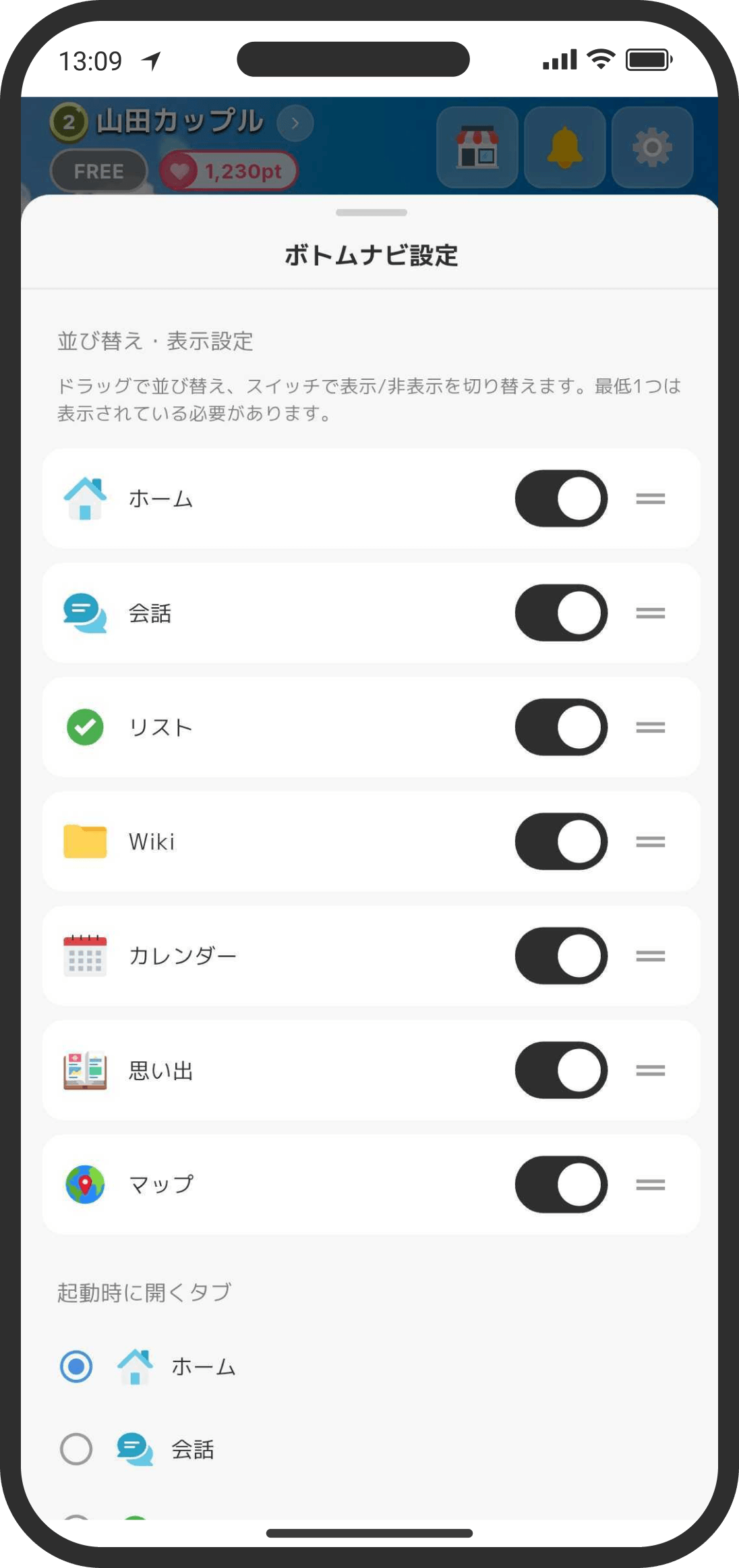
Press and hold any item in the bottom navigation (the menu at the bottom of the screen) to reorder tabs, show or hide them, and choose the tab that opens at launch, right there. Keeping only the tabs you use most makes things nice and tidy.
What is it?
Customize the tabs at the bottom of the screen to fit how you use the app. You can change their order, hide tabs you don't use, and choose which tab opens first when you open the app.
This setting works in both Home screen modes, but the tabs available depend on the mode.
- Default mode: 6 tabs: Home, Calendar, Memories, Map, Timeline and Health (Chat, Lists and Wiki don't appear as tabs because "Top" on Home covers them). All but Health are shown at first.
- Custom mode: 9 tabs, including Chat, Lists and Wiki (Home, Chat, Lists, Wiki, Calendar, Memories, Map, Timeline and Health). The Map, Timeline and Health tabs are hidden at first, so turn on their switches in this setting if you want to use them.
- Health tab: A tab for people who use the Period tracker (including the pill and pregnancy) almost every day. Normally it opens the Period tracker (if you haven't started yet, you can start from "Start"). While you're on the pill, it changes to "Pill tracker", and while you're pregnant to "Pregnancy", with a matching icon, and opens that page. Showing the tab doesn't change your partner's bottom navigation or what your partner can see.
Settings are saved separately for each mode, so switching modes doesn't affect the other mode's settings.
How to use it
- Press and hold an icon in the bottom navigation to open the settings. You can also open the same screen from Settings (the gear icon at the top right of the Home screen).
- Show labels: When on, each tab's name (Home, Chat and so on) appears under its icon. It's on at first. On small devices, some labels may not fit.
- Reorder: Press and hold a tab and drag it to put the tabs in any order you like.
- Show/hide: Use the switch to the right of each tab to choose whether it appears in the bottom navigation. At least one tab must be shown.
- Tab to Open at Launch: Choose which tab appears first when you start the app.
FAQ
Q. Can I still use features whose tabs I hid?
Yes. Hiding a tab only removes it from the bottom navigation; the feature itself is still there. In Default mode, you can reach it from the cards on Home or from "Top." In Custom mode, use shortcuts or widgets on the Home screen, or links from other screens. If you want the tab back, just turn its switch on again in the settings.
Q. Does my partner's bottom navigation change too?
No. The order and visibility of the bottom navigation are saved only on your device.