


About the counselor
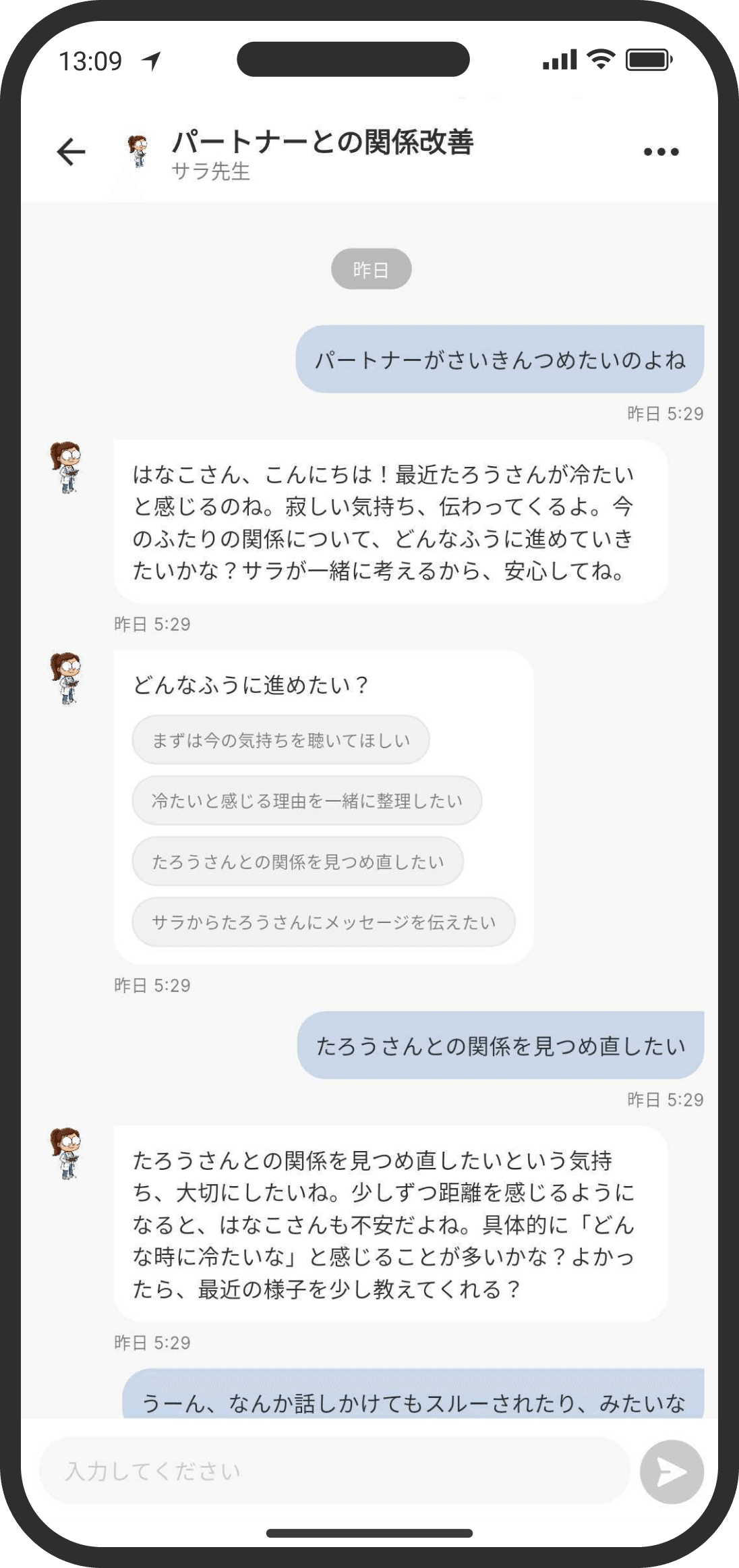
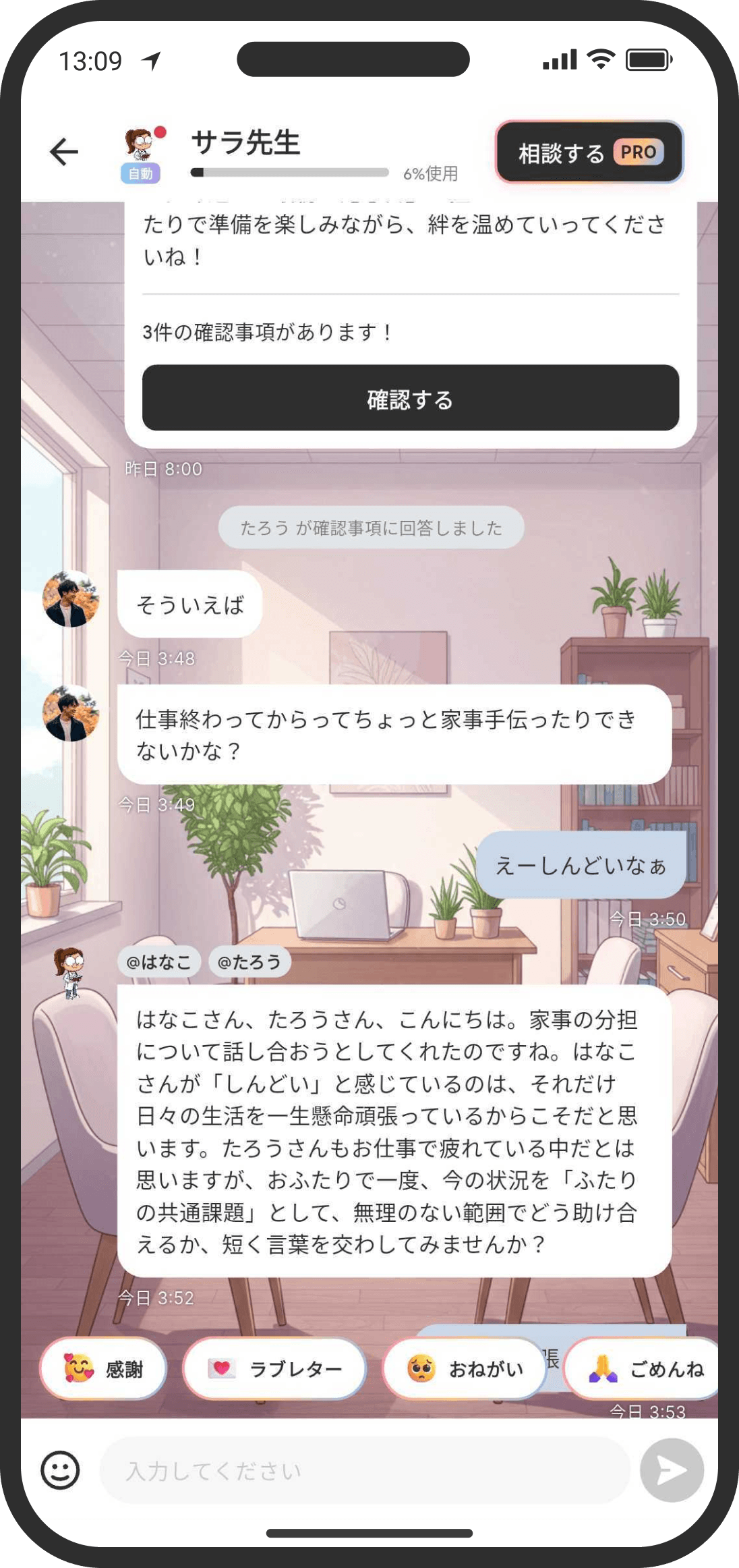
The counselor watches over your relationship from a psychological point of view, helps bridge your feelings, and asks the two of you questions.
What is it?
The counselor analyzes your relationship and sends you messages regularly, checks in on how each of you is feeling and what's going on, and helps put your feelings into words or mediate when you fight. If you answer the personality tests, the counselor can give advice that takes both of your personalities into account.
- Counseling room (your shared room): A place where the two of you and the counselor talk together. What you say here is visible to your partner. With COUPPLY PRO, you can turn on "Auto-join" so the counselor joins your conversations.
- Share or record feelings: Choose from six types (Thanks, Love letter, Request, Apology, Seed of frustration, and Jealousy) to sort out how you feel, or have the counselor turn it into words that will land well and send it to your partner.
- Court: Have the counselor (as the judge) help you settle a fight.
- Consult: A place to talk privately with the counselor. Your partner can't see it. Available with COUPPLY PRO.
Opening the counselor
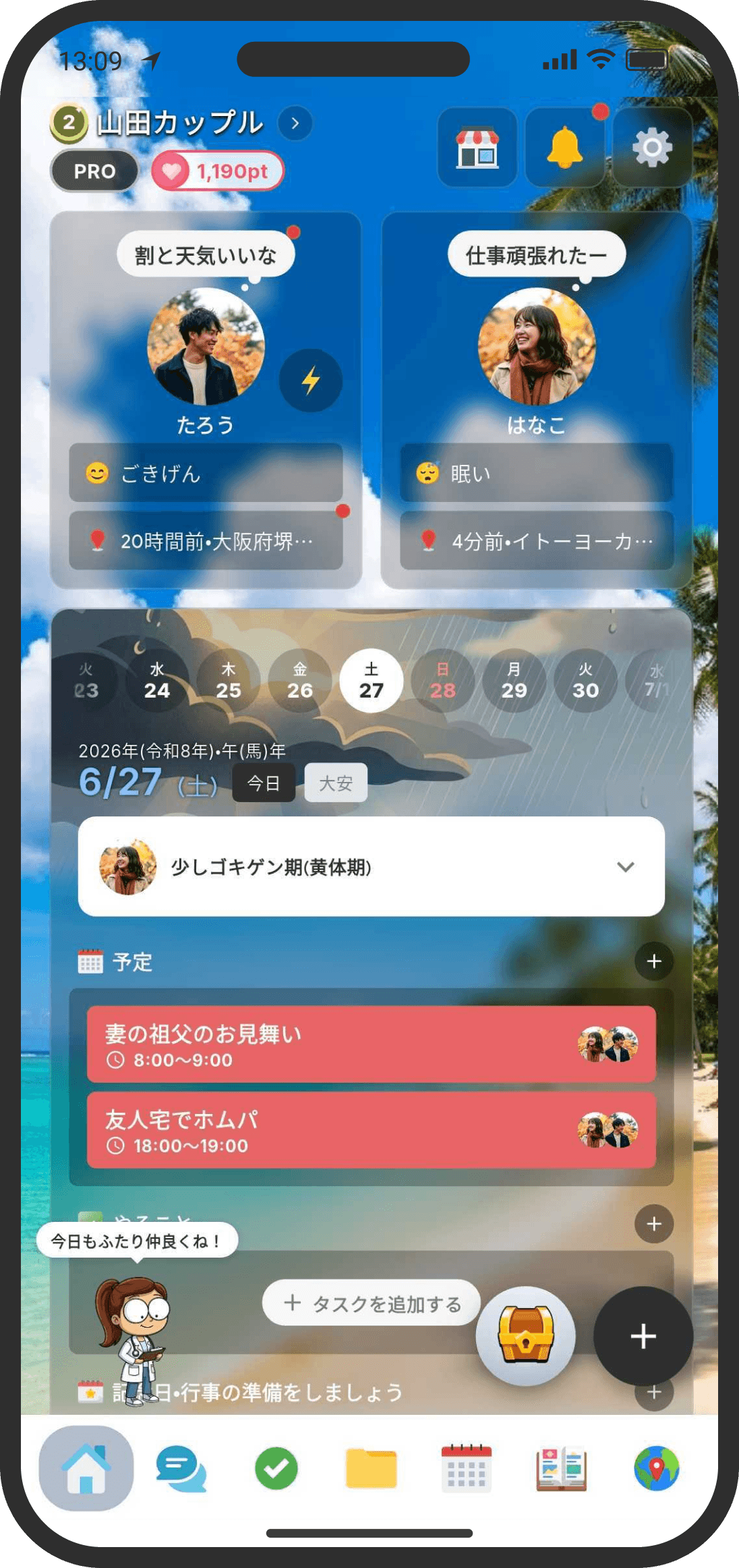
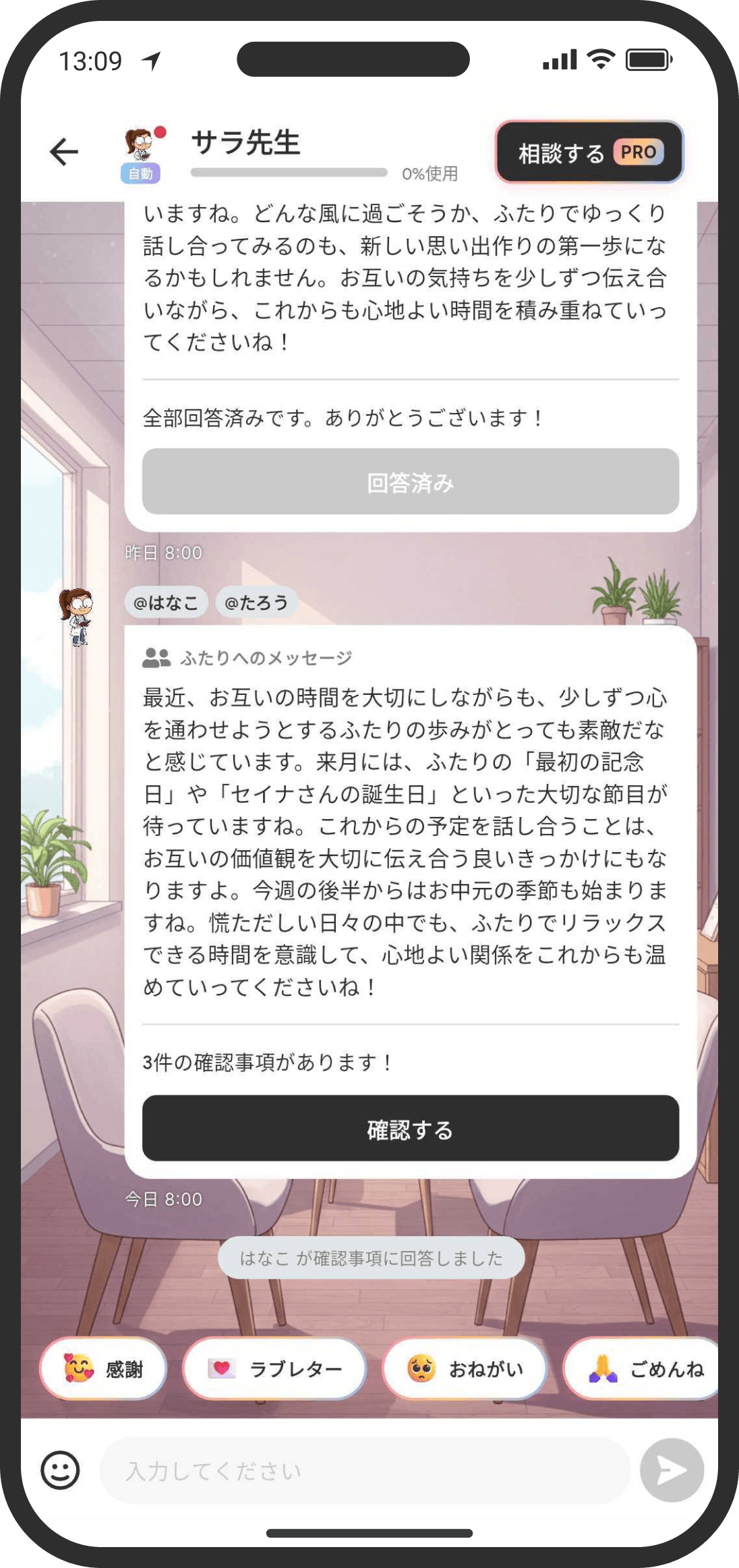
- Tap the counselor on the Home screen (in Default mode, to the left of the speech bubble below the user widget; in Custom mode, at the bottom of the screen) to open the counseling room. Here you, your partner, and the counselor can exchange messages. You can use reactions and stickers, but you can't attach images or files.
- Tap one of the chips lined up at the bottom of the counseling room (Thanks / Love letter / Request / Apology / Seed of frustration / Jealousy / Court / Other) to open its own screen, where you can record your feelings or write a message together with the counselor.
- Feelings you send with "Send now" are also recorded in the timeline. The card only shows the type, such as "A thank-you has arrived," and doesn't show the message itself (the same goes for notifications, so the content never appears on the lock screen). Tap the card to open the counseling room and read the full message. Even if you miss the notification, you can catch it later in the timeline (you only get one notification, never two). Feelings saved with "Record only" aren't sent to your partner, so they don't appear in the timeline either.
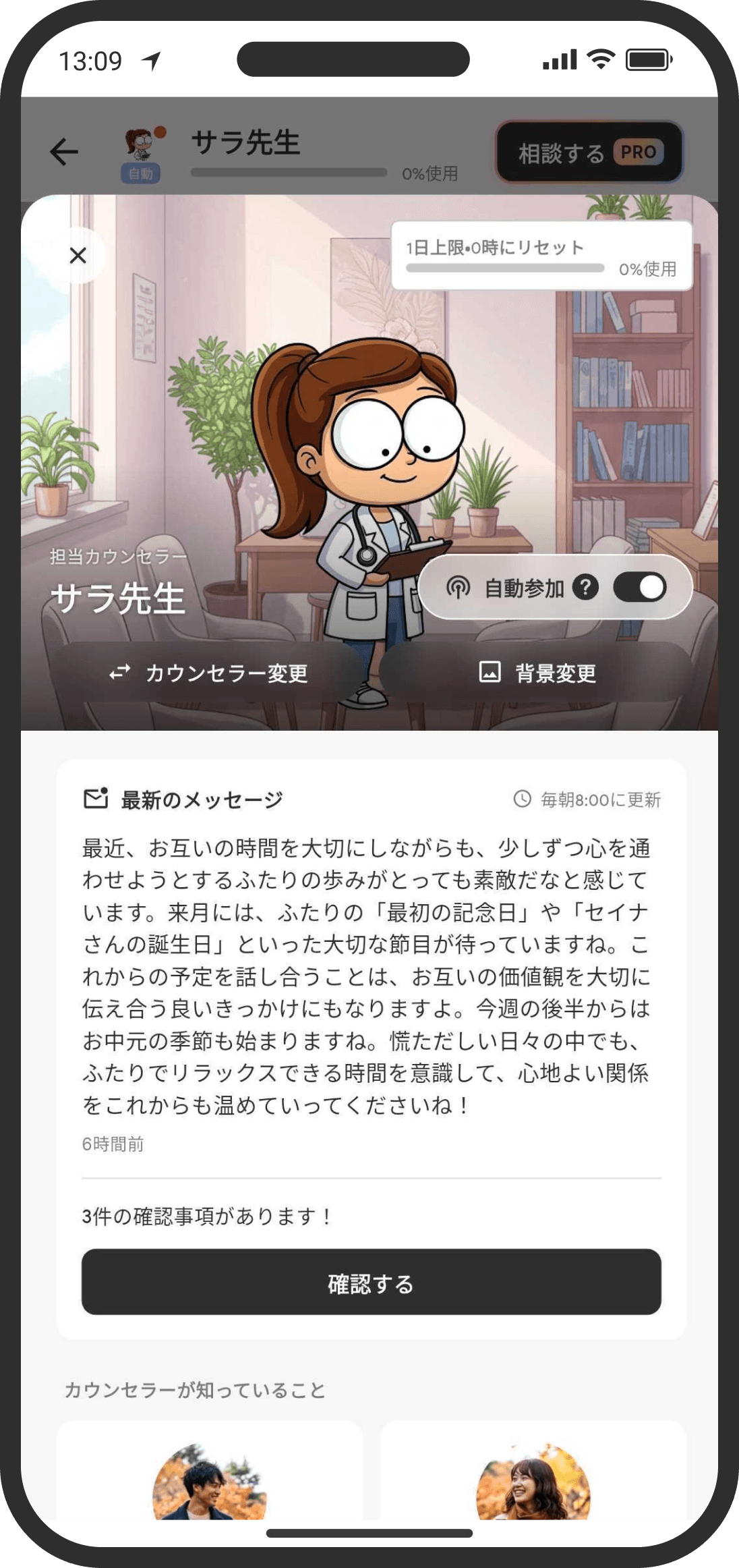
- Tap the counselor icon at the top left of the screen to open the counselor screen. There you can check the counselor's latest message (the same one posted in the counseling room) and any questions waiting for you. Open "Counselor Settings" from "Settings" below the counselor to change the counselor or background and set up regular messages. Your personality info, profiles, and basic info about the two of you (what the counselor knows) are in "Our Profile" in "Counselor Settings."
Start by answering the six questions
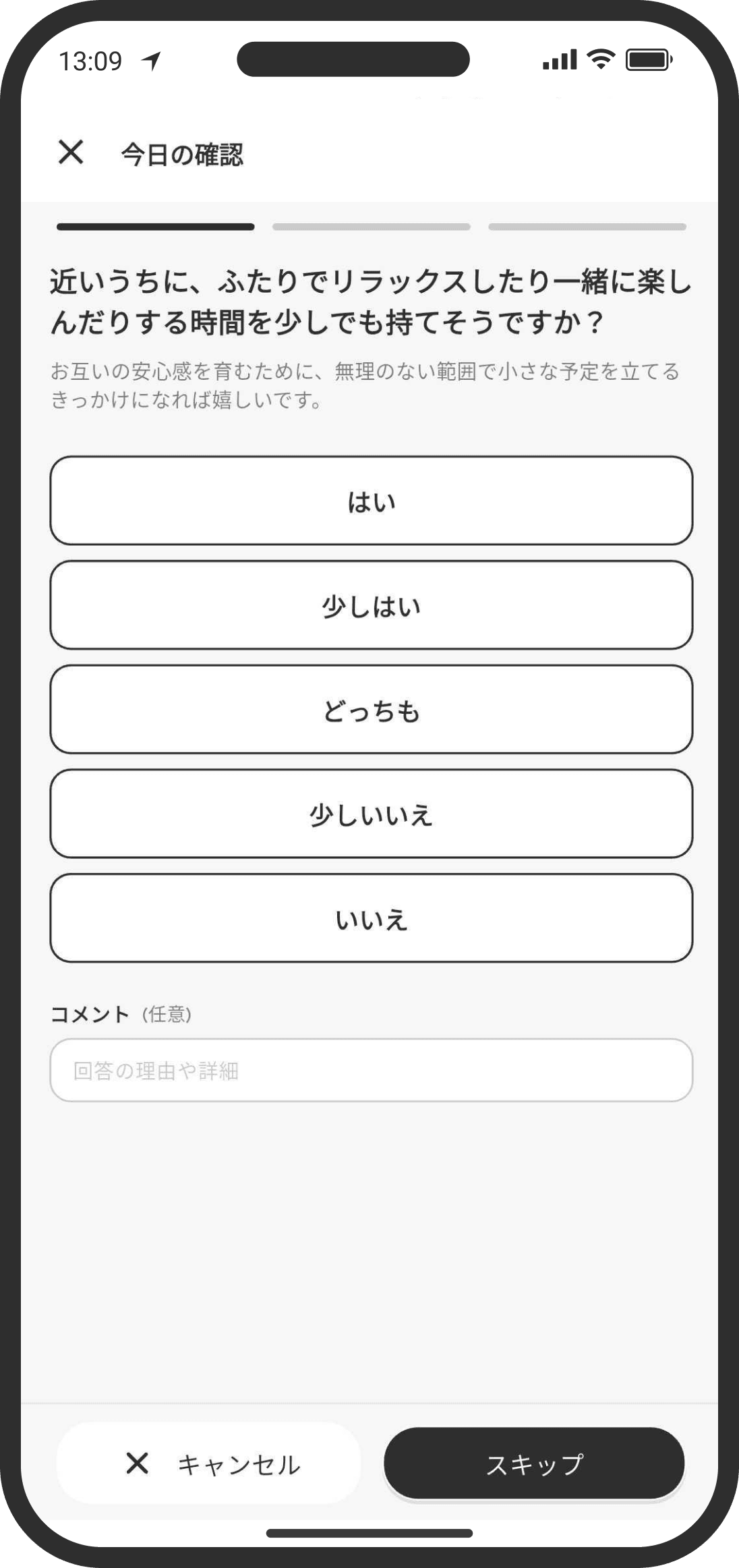
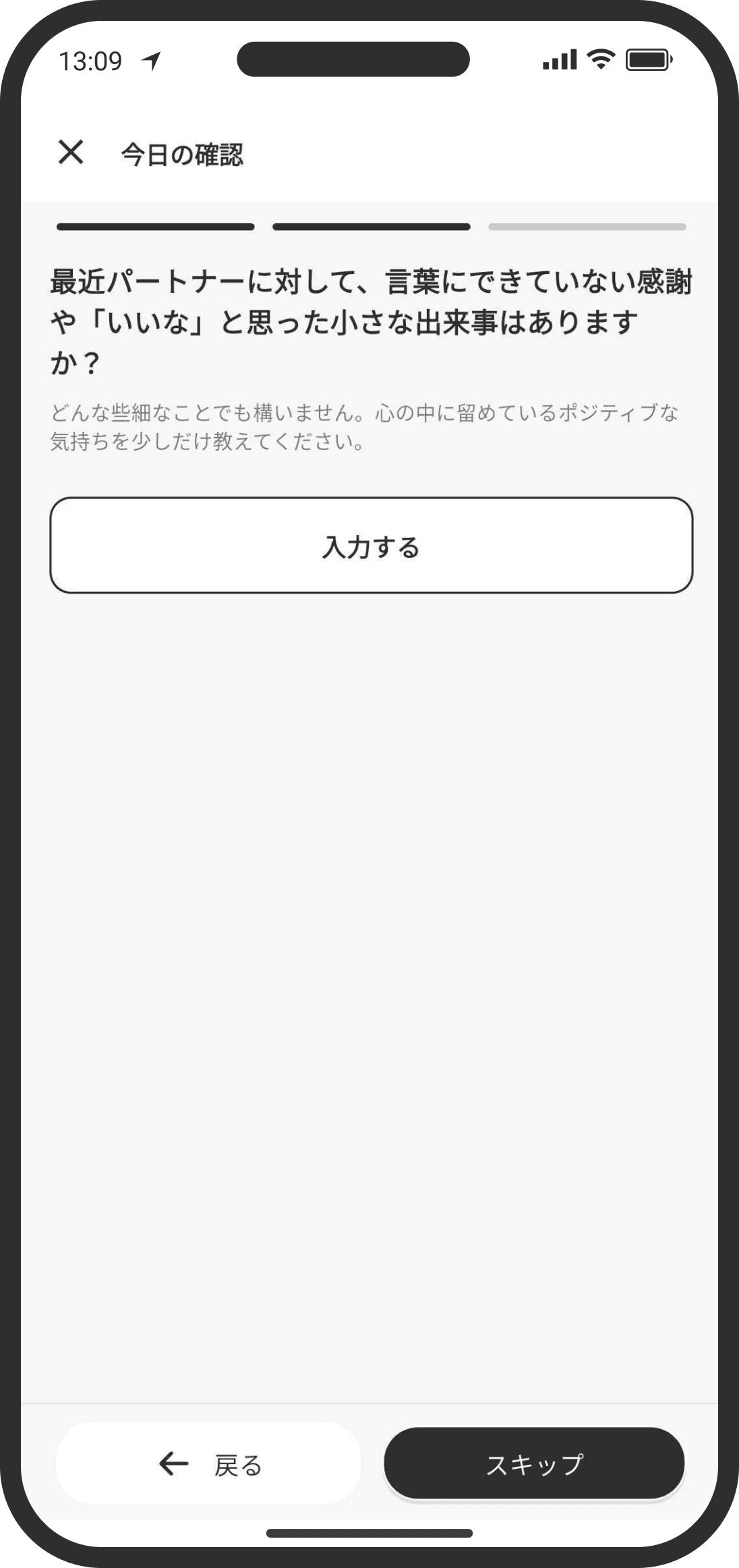
- To start the counselor's relationship analysis and regular messages, both of you need to answer the first questions from the "Let's check the first questions!" button shown at the start. Once you've both answered, regular messages start the following week (the next day with COUPPLY PRO).
- When you answer, the counseling room shows that you've answered. Your partner can't see your answers directly. However, if the counselor decides something is worth sharing, it may pass it on to your partner. Positive things are often shared. For anything you never want your partner to know, talk to the counselor privately in "Consult."
- Once you've both finished answering, your first message arrives from the counselor. With COUPPLY PRO, it arrives at 8:00 AM the next morning. On the free plan, it arrives at 8:00 AM the following Monday.
Morning messages
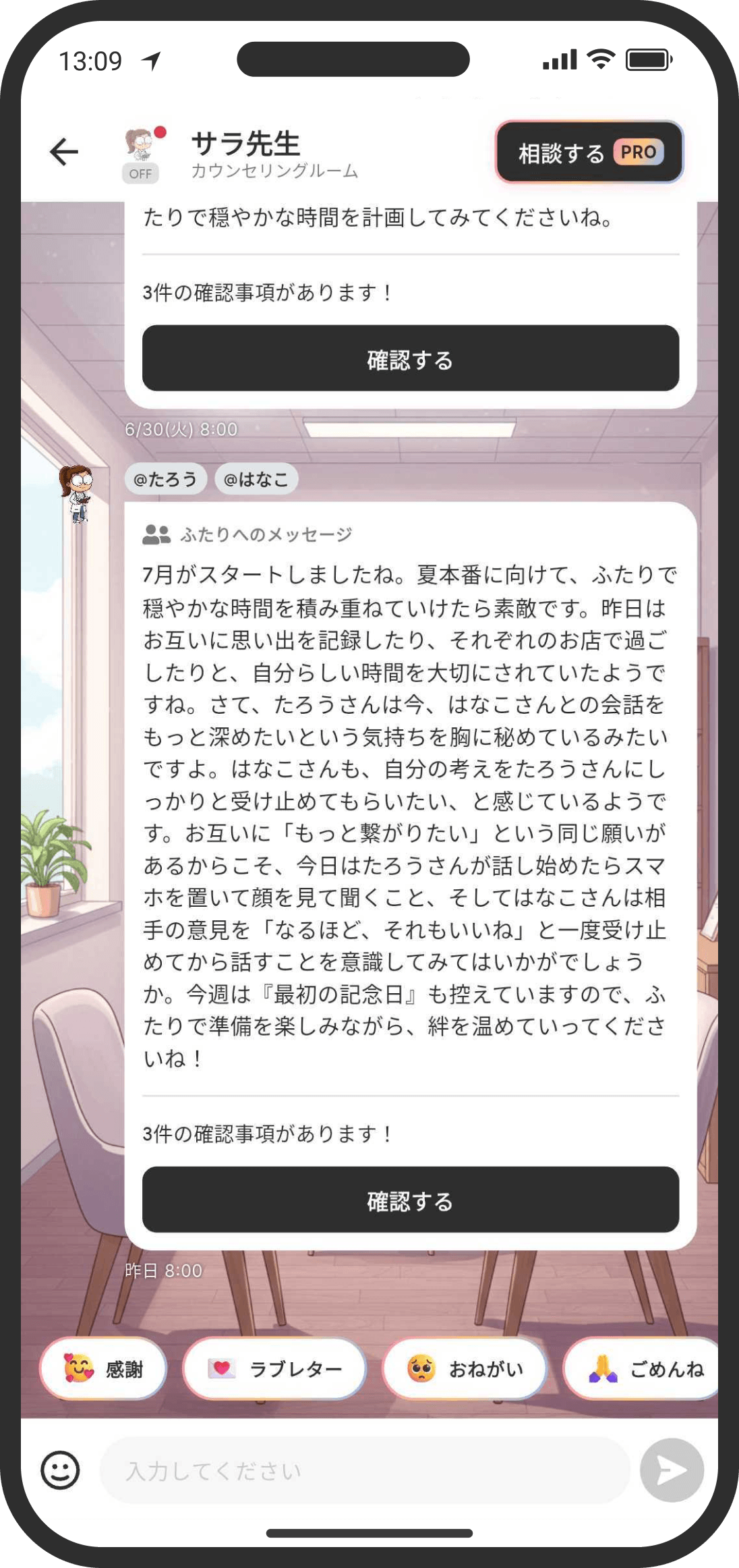
- Every Monday at 8:00 AM, the counselor sends a message based on what the two of you have been up to and your answers to its questions. You'll get a "Check your messages from the counselor!" notification. When there are questions you haven't answered yet, a red badge appears on the counselor icon at the top left.
- With COUPPLY PRO, you can also get one every morning at 8:00 AM. On the counselor screen, go to "Settings" (Counselor Settings) → "Regular Message Settings" and choose "Daily" under "Message Frequency." The default is "Weekly" (Mondays at 8:00 AM). This setting is shared, so if either of you changes it, it changes for both of you.
- Memory cards show a photo thumbnail and title, and list cards show the list's icon.
- If "A word for you two" isn't selected, the counselor won't send new questions about your relationship.
- In the same "Regular Message Settings," you can choose the counselor's "Speaking Style" (shared by both of you; the default is "Counselor").
- Counselor: Shares insights and suggests something you can do today (same as before).
- Just the facts: Gives you just the facts, briefly. No advice or opinions.
- Like a friend: Celebrates with you and reminisces about your memories. No advice.
- The character's name and way of talking stay the same; only the stance of what they say changes.
- Also in "Regular Message Settings," choose what goes into the message under "Message Contents" (combine as many as you like, but pick at least one).
- A word for you two: As before, a word of appreciation or an insight based on how the two of you have been lately (the default).
- Memory look-back: Picks one memory, such as "one year ago today" or "three months ago today," and looks back on it. Even if there's no memory for that day, if you took photos or videos that day, it shares them ("Looks like you took this photo"), and you can open the photos from the card. If there's neither, it picks a memory from a little while back.
- Weekly review: Looks back on everything the two of you did that week. Even if you get messages daily, this is only included in Monday's message.
- This week's plans: Lets you know about events and anniversaries in the coming week, plus when to start preparing for anniversaries a little further out (1 to 4 weeks away). Events imported from other calendars aren't included.
- Reminders: Looks through all your reminders and tells you about ones that are overdue, ones due within a month, and monthly or weekly reminders coming up this week (including reminders you don't show on the Home screen).
- To-do check-in: Tells you how many tasks are still open, and which ones are overdue, due soon, or haven't moved in a while.
- Conversation follow-up: Picks one conversation that's gone quiet or is still waiting for a reply and asks, "Whatever happened with that?"
- For memories and lists, a card is attached below the message. Tap it to go to that memory or list.
- Message settings are shared by both of you. If either of you changes them, the settings change on your partner's screen too (your partner isn't notified). You both receive the same message.
- On days when neither of you opens the counselor screen, that day's message isn't delivered. A new one arrives the next time you open it, from the following morning on.
Talking with the counselor as a group of three
- In the counseling room, the two of you and the counselor can talk together. You can chat with text, stickers, and emoji reactions.
- Plans and events you talk about in the counseling room (for example, "We need to submit the preschool application next month") are remembered by the counselor as part of your shared record and used in later messages and advice. The room is a place you can both see, so nothing there is treated as your private secret. For anything you don't want others to know, talk to the counselor privately in "Consult." The counselor takes these notes when it creates your regular message.
- With COUPPLY PRO, turn on "Auto-join" on the counselor screen and the counselor will reply automatically when it thinks stepping in would help.
- When a new message arrives in the counseling room (from you or your partner, a message from the counselor, a court update, and so on), your partner gets a push notification. The regular morning message is separate and only sends the "Check your messages from the counselor!" notification.
- When feelings or a court case arrive, a record is also kept in the timeline, and a red dot appears on the timeline icon at the bottom of the screen. If you missed the notification, you can check there.
Consulting privately (COUPPLY PRO)
- Tap the "Consult" button at the top right of the screen to go to a screen where only you talk with the counselor. Your partner can't see anything here.
- You can also lock it with a passphrase from the menu on the "Consult" screen. You have one passphrase per account, shared with Just-in-Case Notes.
Changing your counselor
- You can choose from 8 counselors available from the start (Kokoro / Makoto / Sara / Michael / Maria / Luis / Monica / Marcus) and the penguins "Pink Penly" and "Blue Penly." Kokoro is your counselor at first.
- Tap the counselor icon at the top left to open the counselor screen, then go to "Settings" → "Change Counselor" to see the list of counselors. Tap the one you want and press "Select." You can switch anytime.
- In "Consult," you can choose any counselor you like, no matter who your assigned counselor is.
Welcoming an animal counselor
- Besides the human counselors, there are animal counselors too. You can welcome one from "Counselor" in the store for 1,500 coins each. With COUPPLY PRO, you can use all of them from the start.
- The penguins "Pink Penly" and "Blue Penly" are special: both of you can use them from the start without spending coins.
- Counselors you welcome are shared. When you welcome one, your partner can choose it too.
- You can give an animal counselor any name you like. In the list of counselors, tap the animal you welcomed and use the "Rename" button next to its name. The name you choose also shows on your partner's screen.
- Names are remembered for each counselor, so if you switch to another one and come back, the name you gave stays.
- Animal counselors watch over your relationship and give advice just like the human counselors. They just talk in a way that suits the animal.
About food and tokens
- On the free plan, each action that uses AI uses up "food." You can check how much you have left at the top of the counselor screen. You can buy food in the store.
- With COUPPLY PRO, you don't need food. Instead, there's a daily token limit. Once you reach it, AI features are unavailable until midnight.
- Regular messages don't use food or tokens.
FAQ
Q. My morning message didn't arrive
Messages are updated every Monday at 8:00 AM, or every morning at 8:00 AM if you've chosen to get them daily with COUPPLY PRO. Occasionally, creating the message fails and it doesn't arrive.
Q. Does answering a question change the message right away?
No. The message isn't recreated on the spot. Your answers are reflected little by little in messages from the next day on.
Q. Can my partner see my answers?
Neither for the first questions nor for the everyday questions does the level you chose or your comment appear as-is on your partner's screen.
Q. Can the COUPPLY team see what I tell the counselor?
No. All conversations are protected by encryption, and no third party, including the COUPPLY team, can read them. However, to write a reply, the content does have to be passed to the AI (it isn't used for training). For details, see the "Privacy (how we protect data and use AI)" help article.
Q. If I use the app in English or Spanish, what language does the counselor speak?
The counselor replies in the app's display language (conversations, morning messages, questions, love letters, and so on). Messages sent to your partner are written in the display language of the person who created them. The summary of your profiles and basic info about the two of you on the counselor screen stays in Japanese.
Q. Does the counseling room show read receipts?
No. There are no read receipts. When there are unread messages, they're shown in the counselor character's speech bubble on the Home screen.
Q. The counselor disappeared from my Home screen
(In Custom mode) Open "Home Screen Settings" at the bottom of the Home screen, tap the counselor at the bottom left, and choose "Walk Mode" or "Line-up Mode" to show it again. If you don't use the counselor, choose "Hide from Home." In Default mode, the counselor is always shown and can't be hidden.
Q. I want to stop the morning push notification
Tap the gear icon at the top right of the Home screen to open Settings, then go to "Push Notification Settings" near the bottom. Turn off "Morning counselor message" in the "System" tab and you won't get it anymore.